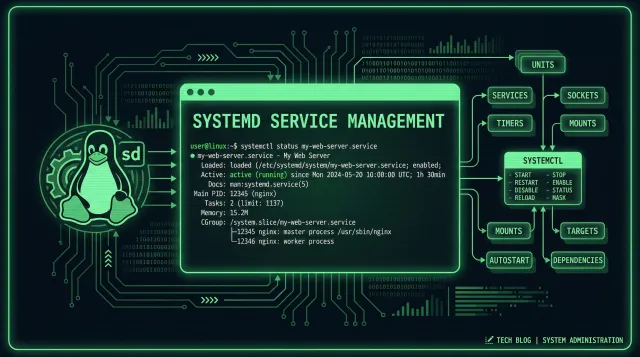
Systemd is the init system and service manager on virtually every modern Linux distribution. If you are running a production server, you are already using systemd, whether you think about it or not. The question is whether you are using it well.
Most systemd tutorials stop at creating a basic unit file and starting a service. That is enough to get something running, but it is not enough to run it safely in production. A service that starts but does not log properly, has no resource limits, and runs as root with full filesystem access is a liability, not an asset.
This guide covers the practices that separate a working service from a production-ready service. Every recommendation here comes from real incidents on production servers, not theoretical best practices.
Anatomy of a Production Unit File
A minimal systemd unit file gets the job done:
[Unit]
Description=My Application
After=network.target

[Service]
ExecStart=/usr/bin/myapp
Restart=always

[Install]
WantedBy=multi-user.target
This works for development. For production, you need more:
[Unit]
Description=My Application API Server
After=network-online.target
Wants=network-online.target
Requires=postgresql.service

[Service]
Type=notify
User=appuser
Group=appgroup
WorkingDirectory=/opt/myapp

ExecStart=/opt/myapp/bin/server
ExecReload=/bin/kill -HUP $MAINPID

Restart=on-failure
RestartSec=5
StartLimitBurst=3
StartLimitIntervalSec=60

StandardOutput=journal
StandardError=journal
SyslogIdentifier=myapp

ProtectSystem=strict
ProtectHome=true
ReadWritePaths=/opt/myapp/data /var/log/myapp
PrivateTmp=true
NoNewPrivileges=true
CapabilityBoundingSet=
SystemCallArchitectures=native

MemoryMax=512M
CPUQuota=80%
TimeoutStartSec=30
TimeoutStopSec=30

[Install]
WantedBy=multi-user.target
The difference between these two files is the difference between a service that runs and a service that runs safely, recoverably, and observably. The first file will start your application, but it provides no security boundaries, no resource limits, no structured logging, and no restart policy beyond “always restart.” In production, that means a memory leak will eventually consume all available RAM, a crash loop will restart indefinitely, and a compromised service will have root access to everything on the server.
The second file addresses all of these issues. It runs as a dedicated user, logs to the journal with a consistent identifier, restricts filesystem and privilege access, limits memory and CPU usage, and handles restarts with appropriate backoff. Every directive in the production unit file exists because something went wrong without it.
Let me walk through each section.
Dependency Management: After and Requires
The After= and Requires= directives control startup order and dependency relationships. Getting these wrong is the most common cause of services that fail on boot but work fine when started manually.
After=network.target tells systemd to start your service after the network target is reached. But network.target is about configuration, not connectivity. If your service needs an actual network connection, use network-online.target with Wants=:
After=network-online.target
Wants=network-online.target
If your service depends on another specific service, use Requires= or BindsTo=:
Requires=: If the dependency fails, your service fails tooBindsTo=: If the dependency stops, your service stops tooWants=: If the dependency fails, your service starts anyway
Use Requires= for database connections. Use BindsTo= for services that must be co-located. Use Wants= for optional dependencies.
A common mistake is omitting After= entirely. Without it, systemd may start your service before the network is configured or before the database is ready. Your service will fail to connect, and depending on your restart policy, it may either crash-loop until the dependency comes up or stay down permanently. Always specify the startup order explicitly, even if you think the defaults are sufficient.
Another pattern worth noting is the use of Wants= combined with After=. This creates a soft dependency: systemd will try to start the dependency first, but your service will start regardless of whether the dependency succeeds. This is useful for optional services like monitoring agents or caching layers that improve performance but are not required for basic operation.
Running as a Non-Root User
Every service should run as a dedicated user, not as root. This is not a suggestion. It is a security requirement. If your service is compromised and it runs as root, the attacker has full control of the server. Every privilege escalation vulnerability in your application becomes a full system compromise when the service runs as root.
The dedicated user approach also makes debugging easier. When you see log entries from appuser, you know they came from your service. When everything runs as root, you have to rely on process IDs and unit names to figure out which service generated which log entry.
One thing to watch: if your service needs to bind to a port below 1024, you have two options. The traditional approach is to run as root and drop privileges after binding. The modern approach is to use AmbientCapabilities=CAP_NET_BIND_SERVICE in the unit file, which grants only the specific capability needed to bind to low ports without giving the service full root access:
User=appuser
Group=appgroup
AmbientCapabilities=CAP_NET_BIND_SERVICE
This is strictly better than running as root. Use it whenever your service needs to bind to privileged ports.
Create a dedicated user and group for your service:
sudo useradd -r -s /bin/false -d /opt/myapp appuser
sudo groupadd appgroup
sudo usermod -aG appgroup appuser
sudo chown -R appuser:appgroup /opt/myapp
Then set the user and group in the unit file:
User=appuser
Group=appgroup
The service will run with only the permissions of that user. If it needs access to specific directories, grant them explicitly with ReadWritePaths= rather than running as root.
Logging: Journal Integration
Systemd’s journal is the default logging mechanism for systemd services. If you do not configure logging properly, your service’s output disappears into the void, and debugging becomes a guessing game.
Always set these three directives:
StandardOutput=journal
StandardError=journal
SyslogIdentifier=myapp
StandardOutput=journal and StandardError=journal send both stdout and stderr to the systemd journal. SyslogIdentifier=myapp gives your service a consistent identifier in the journal, so you can filter logs with journalctl -u myapp.
If your application writes to log files instead of stdout/stderr, you can redirect those files to the journal using LogsDirectory=:
LogsDirectory=myapp
LogsDirectoryMode=0755
This creates /var/log/myapp/ owned by the service user, and systemd will manage the directory lifecycle. Combined with log rotation in journald.conf, this gives you structured, centralized logging without requiring a separate log management setup.
For applications that support structured logging (JSON output), consider adding StandardOutput=json if your systemd version supports it (systemd 252+). This allows the journal to parse log fields and enables more powerful filtering with journalctl.
Without SyslogIdentifier, the journal uses the binary name, which changes if you rename the executable or run it from a different path. Always set it explicitly.
To view your service’s logs:
# Recent logs
journalctl -u myapp -f

# Logs since last boot
journalctl -u myapp -b

# Logs from a specific time range
journalctl -u myapp --since "2026-08-07 10:00" --until "2026-08-07 12:00"

# Logs with priority filtering
journalctl -u myapp -p err
Journal Storage Management
The journal grows over time. On a busy server, it can consume gigabytes of disk space. Configure storage limits in /etc/systemd/journald.conf:
[Journal]
SystemMaxUse=500M
SystemKeepFree=1G
RuntimeMaxUse=100M
MaxRetentionSec=30day
SystemMaxUse caps total journal storage. SystemKeepFree ensures the journal does not consume disk space needed by other services. MaxRetentionSec deletes entries older than the specified time.
After changing journald.conf, restart the journal daemon:
sudo systemctl restart systemd-journaldSecurity Sandboxing
Systemd includes built-in sandboxing directives that limit what a service can access. These are not optional for production services.
Filesystem Protection
ProtectSystem=strict
ProtectHome=true
ReadWritePaths=/opt/myapp/data /var/log/myapp
PrivateTmp=true
ProtectSystem=strict mounts the entire filesystem as read-only, except for paths you explicitly allow with ReadWritePaths=. ProtectHome=true hides /home, /root, and /run/user. PrivateTmp=true gives the service its own /tmp namespace.
Privilege Restriction
NoNewPrivileges=true
CapabilityBoundingSet=
SystemCallArchitectures=native
NoNewPrivileges=true prevents the service from gaining new privileges through setuid binaries or other mechanisms. CapabilityBoundingSet= with no value removes all Linux capabilities. SystemCallArchitectures=native restricts the service to native system calls, blocking 32-bit compatibility calls.
Network Isolation (if applicable)
If your service does not need network access:
PrivateNetwork=trueIf it does need network access but should only bind to specific ports:
RestrictAddressFamilies=AF_INET AF_INET6Resource Limits
Uncontrolled resource consumption is one of the most common causes of production incidents. A service with a memory leak can consume all available RAM and crash the entire server. Systemd lets you set hard limits.
Memory
MemoryMax=512M
MemoryHigh=384M
MemoryMax is a hard limit. When the service hits it, the OOM killer steps in. MemoryHigh is a soft limit. When the service exceeds it, systemd applies memory pressure to encourage the service to free memory.
Set MemoryHigh to about 75% of MemoryMax. This gives the service room to handle spikes while still catching leaks before they crash the system.
CPU
CPUQuota=80%This limits the service to 80% of a single CPU core. On a 4-core server, this means the service can use the equivalent of 3.2 cores. Adjust based on your workload. A CPU-intensive service might need a higher quota. A background service that should not compete with user-facing applications might need a lower one.
File Descriptors
LimitNOFILE=65536The default limit is often 1024, which is too low for services that handle many concurrent connections. Set this to a reasonable value based on your expected connection count.
Restart Behavior
How your service recovers from failures matters as much as how it starts.
Restart=on-failure
RestartSec=5
StartLimitBurst=3
StartLimitIntervalSec=60
Restart=on-failure restarts the service only when it exits with a non-zero status. If the service exits cleanly (exit code 0), it stays stopped. This prevents a service that is designed to run once from restarting in a loop.
There are other restart modes worth knowing about:
Restart=always: Restarts regardless of exit code. Use this for services that should always be running, like a web server.Restart=on-abnormal: Restarts on signal, timeout, or watchdog expiration, but not on clean exit or normal termination. Good for services that have a specific shutdown sequence.Restart=on-abort: Restarts only when the process is killed by a signal. Useful for services that need manual intervention after a clean shutdown.
Choose the restart mode based on your service’s behavior. A web server should use always. A batch processing job that should not restart if it completes successfully should use on-failure. A long-running worker that processes a queue should use on-abnormal.
RestartSec=5 waits 5 seconds before restarting. This prevents rapid restart loops that can overwhelm the system.
StartLimitBurst=3 and StartLimitIntervalSec=60 together mean: if the service fails to start 3 times within 60 seconds, systemd stops trying. This prevents a broken service from consuming resources in an infinite restart loop.
Reload vs. Restart
For services that support configuration reloading without downtime, use ExecReload.
Before using ExecReload, verify that your application actually supports graceful reload. Not all applications handle SIGHUP correctly. Some will crash. Some will reload configuration but drop active connections. Some will ignore the signal entirely. Test the reload behavior on a staging server before deploying to production.
If your application does not support SIGHUP, you can still avoid full restarts by using ExecStartPre= and ExecStartPost= to handle pre-start and post-start tasks:
ExecStartPre=/opt/myapp/bin/validate-config
ExecStart=/opt/myapp/bin/server
ExecStartPost=/bin/sh -c 'echo "Service started successfully" | logger -t myapp'
This gives you a validation step before the service starts and a confirmation message after it starts, without requiring the application itself to support reload signals.
ExecReload=/bin/kill -HUP $MAINPIDThis sends SIGHUP to the main process, which most well-written services interpret as “reload configuration.” It is faster than a full restart and does not drop connections.
For services that do not support HUP-based reload, use systemctl restart instead. Do not try to force reload on a service that does not support it. You will get unexpected behavior.
Template Units
If you need to run multiple instances of the same service with different configurations, use template units. Name the file with an @ symbol.
Template units are particularly useful for three scenarios:
- Multiple environments: Run the same application in production and staging configurations on the same server.
- Horizontal scaling: Run multiple instances of a stateless service behind a load balancer.
- Multi-tenant deployments: Run per-tenant instances with different resource limits and configurations.
The instance name can be anything: a string, a number, or a combination. Systemd uses %i for the instance name as-is and %I for the instance name with special characters escaped. For most cases, %i is what you want.
# /etc/systemd/system/myapp@.service
[Unit]
Description=My Application instance %i
After=network-online.target

[Service]
User=appuser
ExecStart=/opt/myapp/bin/server --config /etc/myapp/%i.conf
Restart=on-failure

[Install]
WantedBy=multi-user.target
Then start instances by name:
sudo systemctl start myapp@production
sudo systemctl start myapp@staging
The %i in the unit file is replaced with the instance name. This is useful for running multiple environments on the same server or for scaling a service horizontally.
Debugging Services
When a service fails to start or behaves unexpectedly, systemd provides several debugging tools.
# Check service status and recent logs
systemctl status myapp

# View full unit file (including defaults)
systemctl cat myapp

# Show all properties
systemctl show myapp

# Check for dependency issues
systemctl list-dependencies myapp

# Analyze boot performance
systemd-analyze blame
systemd-analyze critical-chain myapp

# Verify unit file syntax
systemd-analyze verify /etc/systemd/system/myapp.service
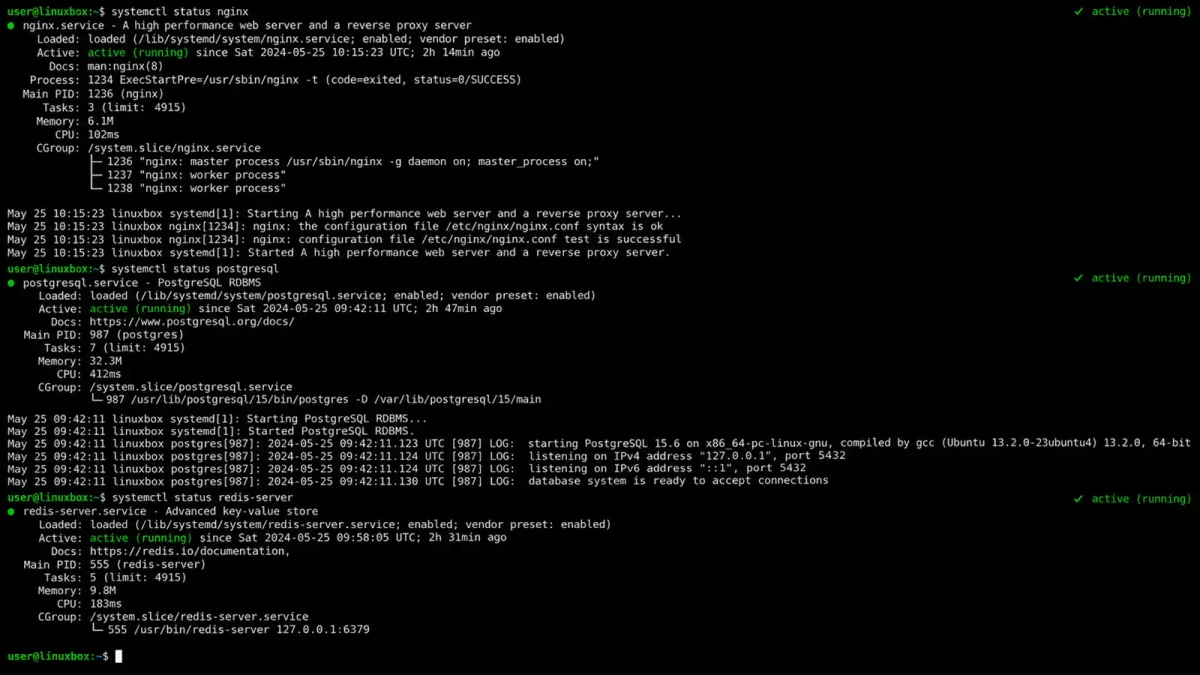
The most useful command for debugging is journalctl -u myapp -e, which shows the most recent log entries and lets you scroll through them. Combined with systemctl status myapp, this usually reveals the root cause of startup failures.
For more complex debugging, systemd-analyze provides several useful subcommands:
# Show how long each service took to start
systemd-analyze blame

# Show the critical chain of dependencies for your service
systemd-analyze critical-chain myapp.service

# Generate a graphical visualization of the boot process
systemd-analyze plot > boot.svg
The critical-chain output is particularly useful when your service depends on other services. It shows the exact sequence of dependencies and how long each one took, making it easy to identify bottlenecks in your startup order.
If your service is failing silently (starts but does not respond), check its cgroup status:
systemctl status myapp
cat /sys/fs/cgroup/system.slice/myapp.service/cgroup.controllers
This tells you whether systemd is actually managing the service’s cgroup and what controllers are active. If the cgroup is missing, the service may have forked into a different cgroup, which means systemd has lost track of it.
Conclusion
A production-ready systemd service is more than a unit file with an ExecStart directive. It runs as a non-root user, logs to the journal with a consistent identifier, has security sandboxing to limit its blast radius, resource limits to prevent it from crashing the server, and restart behavior that recovers from failures without entering loops.
The unit file at the beginning of this guide implements all of these practices. Copy it, adapt it to your service, and test it on a non-production server before deploying. The ten minutes you spend configuring systemd properly will save you hours of debugging production incidents.
Systemd is not glamorous. It does not generate excitement the way a new programming language or framework does. But it is the foundation that every other service on your server depends on. Getting it right means your applications start reliably, recover from failures gracefully, and fail safely when something goes wrong. Getting it wrong means debugging mysterious boot failures at 3am because a service started before its database was ready and systemd had no restart policy configured.
Start with the unit file template in this guide. Add the security directives. Configure the logging. Set the resource limits. Test it. Then deploy it. Your future self, debugging a production incident at an inconvenient hour, will thank you.