Introduction
Systemd has become the default init system for most Linux distributions, replacing older approaches like SysV init and Upstart. Systemd is essential for modern Linux administration because it controls service startup, monitoring, logging, and resource management. This guide covers everything from basic service operations to advanced unit file configuration.
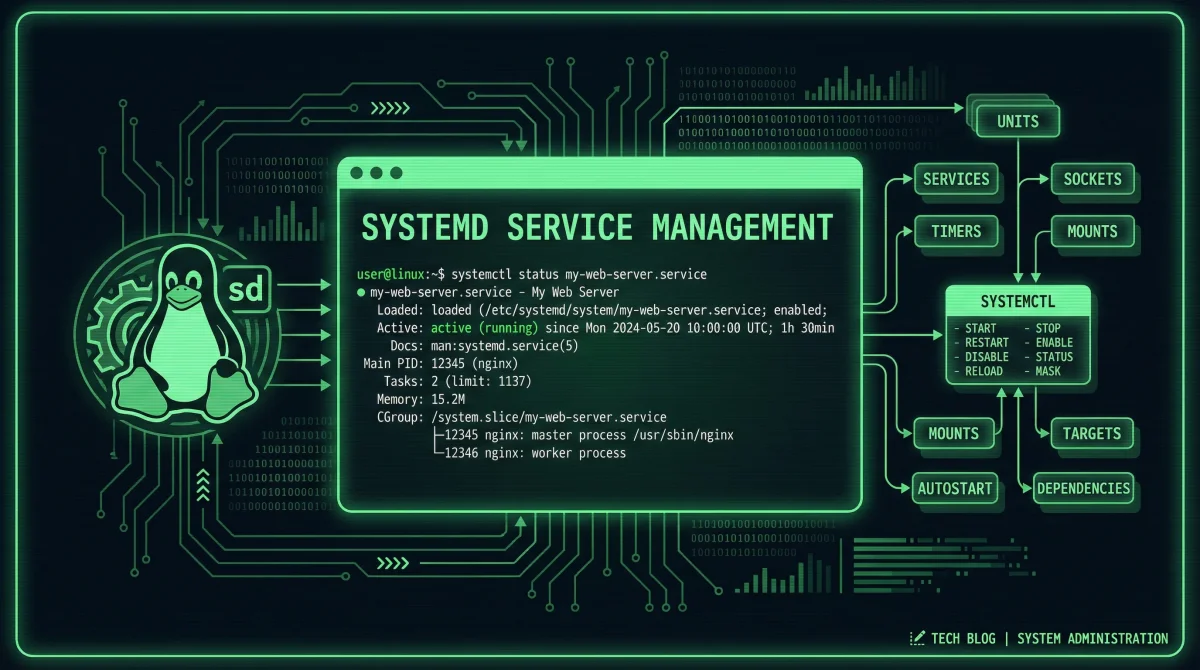
Systemd’s architecture treats services as units with explicit dependencies, timers, and resource limits. This declarative approach enables precise control over service behavior and reliable system initialization. While the transition to systemd initially generated controversy, its capabilities have proven valuable for production environments.
We will explore unit file creation, service lifecycle management, and troubleshooting techniques. Each section includes practical examples that you can apply to your own services. By the end, you will have the skills to manage services confidently and create robust service configurations.
Systemd Fundamentals
Before diving into configuration, learn systemd’s conceptual model to make better decisions about service management. Systemd organizes system components into units with specific types and relationships.
Unit Types and Concepts
Systemd manages several unit types, each representing different system components. Service units define daemon processes and their configuration. Socket units manage network or IPC sockets for activation. Timer units schedule events like cron jobs. Target units group units for synchronized initialization.
Units have states that reflect their current condition. Active indicates a running or recently stopped service. Failed indicates a service encountered an error. Active (exited) indicates one-shot services that completed successfully. Active (waiting) indicates services waiting for events.
Dependencies link units together. Requires declares hard dependencies—if the target stops, dependent units also stop. Wants declares soft dependencies—failure does not cascade. Before and After define ordering independent of dependency type. Understanding these relationships enables predictable system initialization.
Systemctl Essentials
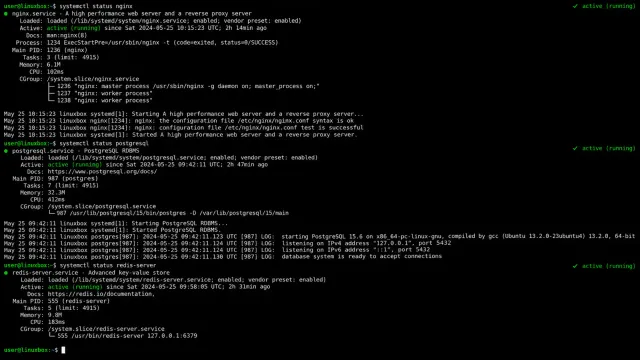
The systemctl command controls systemd units. Master these commands for daily administration tasks:
# View service status
systemctl status nginx.service

# Start a service
sudo systemctl start nginx.service

# Stop a service
sudo systemctl stop nginx.service

# Restart a service (graceful restart)
sudo systemctl restart nginx.service

# Reload configuration without stopping
sudo systemctl reload nginx.service

# Enable service startup at boot
sudo systemctl enable nginx.service

# Disable service startup at boot
sudo systemctl disable nginx.service

# View all active services
systemctl list-units --type=service --state=active

# View service configuration
systemctl cat nginx.service

# View service dependencies
systemctl list-dependencies nginx.service

# Check if service is enabled
systemctl is-enabled nginx.service

# Check service health
systemctl is-active nginx.service
The distinction between restart and reload matters for services that support configuration reloading. Restart stops and starts the service, causing brief downtime. Reload updates configuration without interrupting service, maintaining availability.
Creating Custom Service Units
Custom service units enable you to run application servers, scripts, and background processes under systemd’s management. This section covers creating unit files for common scenarios.
Basic Service Unit Structure
Unit files consist of sections defining different aspects of the service. The [Unit] section describes dependencies and ordering. The [Service] section configures execution behavior. The [Install] section defines installation behavior for enable/disable operations.
Create a service file for a Python web application:
# /etc/systemd/system/myapp.service
[Unit]
Description=My Python Web Application
Documentation=https://example.com/docs
After=network.target postgresql.service
Wants=network.target

[Service]
Type=simple
User=www-data
Group=www-data
WorkingDirectory=/opt/myapp
Environment="PYTHONPATH=/opt/myapp"
Environment="CONFIG_PATH=/etc/myapp/config.yaml"
ExecStart=/usr/bin/python -m uvicorn main:app --host 0.0.0.0 --port 8000
ExecReload=/bin/kill -HUP $MAINPID
Restart=on-failure
RestartSec=5
TimeoutStartSec=30
TimeoutStopSec=30
# Security hardening
NoNewPrivileges=true
ProtectSystem=strict
ProtectHome=true
PrivateTmp=true
ReadWritePaths=/opt/myapp /var/log/myapp

[Install]
WantedBy=multi-user.target
Enable and start the service:
# Reload systemd to recognize new unit
sudo systemctl daemon-reload

# Enable the service for boot startup
sudo systemctl enable myapp.service

# Start the service
sudo systemctl start myapp.service

# Verify status
sudo systemctl status myapp.service
Environment and Variable Configuration
Services often require environment variables for configuration. Systemd supports multiple approaches for setting and managing environment variables.
Create an environment file for sensitive configuration:
# /etc/myapp/environment.conf
DATABASE_URL=postgresql://<db_user>:<db_password>@localhost:5432/myapp
SECRET_KEY=<your-secret-key>
LOG_LEVEL=info
Reference the environment file in your service unit:
[Service]
EnvironmentFile=/etc/myapp/environment.conf
ExecStart=/opt/myapp/bin/start.sh
Alternatively, set environment variables directly in the unit file for simple cases:
[Service]
Environment="VAR1=value1"
Environment="VAR2=value2"
EnvironmentFile=-/etc/myapp/optional.conf
The - prefix before the environment file path tells systemd to continue if the file is missing, preventing startup failures from optional configuration.
Multi-Process Services
Some applications spawn multiple processes that systemd should manage together. The Type=notify setting indicates services using sd_notify protocol for status updates.
[Unit]
Description=Gunicorn WSGI Server
After=network.target

[Service]
Type=notify
User=www-data
Group=www-data
WorkingDirectory=/opt/myapp
ExecStart=/usr/bin/gunicorn \
  --workers 4 \
  --bind unix:/run/gunicorn.sock \
  --capture-output \
  main:app
ExecReload=/bin/kill -HUP $MAINPID
Restart=on-failure
RestartSec=5

# Socket activation
Socket=gunicorn.socket

[Install]
WantedBy=multi-user.target
Advanced Service Configuration
Production services often require additional configuration for resource limits, logging, and health monitoring. This section covers advanced settings that improve service reliability and security.
Resource Limits and Controls
Systemd enforces resource limits that prevent runaway processes from affecting system stability:
[Service]
# CPU limits (percent of one core)
CPUAccounting=true
CPUQuota=50%

# Memory limits
MemoryAccounting=true
MemoryMax=512M
MemoryHigh=400M
MemorySwapMax=100M

# IO limits (block device bandwidth)
IOAccounting=true
IOReadBandwidthMax="/dev/sda 10M"
IOWriteBandwidthMax="/dev/sda 5M"

# Process limits
TasksAccounting=true
TasksMax=50

# Hardening
NoNewPrivileges=true
ProtectSystem=strict
ProtectHome=true
PrivateTmp=true
ReadOnlyPaths=/etc /usr
The memory limits prevent memory exhaustion from killing the entire system. MemoryHigh triggers memory pressure handling before reaching the hard limit. CPU quota ensures the service cannot monopolize processor time.
Health Checks and Dependencies
Configure health checks that systemd uses to determine service health and restart behavior:
[Service]
# Exec health check
ExecStartPost=/bin/bash -c 'until curl -sf http://localhost:8080/health; do sleep 1; done'
ExecStartPost=/bin/touch /var/run/myapp/started

# Pre-stop and post-stop commands
ExecStop=/bin/kill -TERM $MAINPID
ExecStopPost=/bin/rm -f /var/run/myapp/started

# Restart policies
Restart=on-failure
RestartForceExitStatus=133
RestartPreventExitStatus=0

# Watchdog for unresponsive services
WatchdogSec=30
WatchdogEnterStatus=250
The watchdog feature monitors service responsiveness. If the service fails to ping within the watchdog period, systemd takes configured action. This catches deadlock situations that would otherwise hang the service indefinitely.
Timer Units for Scheduled Tasks
Timer units replace cron for scheduled execution, providing calendar-based scheduling and integration with systemd’s logging and resource management:
# /etc/systemd/system/backup.service
[Unit]
Description=Database Backup Script
After=postgresql.service

[Service]
Type=oneshot
User=root
ExecStart=/opt/scripts/backup.sh

[Install]
WantedBy=multi-user.target
# /etc/systemd/system/backup.timer
[Unit]
Description=Run backup every day at 2 AM
[Timer]
OnCalendar=*-*-* 02:00:00
Persistent=true
RandomizedDelaySec=3600
[Install]
WantedBy=timers.targetEnable the timer rather than the service:
sudo systemctl enable backup.timer
sudo systemctl start backup.timer

# List active timers
systemctl list-timers
The Persistent=true setting ensures the timer runs missed executions after system restart. RandomizedDelaySec spreads scheduled tasks to prevent thundering herd problems.
Troubleshooting Service Issues
Even well-configured services occasionally fail. Systematic troubleshooting identifies root causes and guides remediation.
Analyzing Service Failures
When services fail, systemd provides detailed diagnostic information:
# View detailed service status
sudo systemctl status myapp.service -l

# View recent journal entries
sudo journalctl -u myapp.service -n 100

# Follow logs in real-time
sudo journalctl -u myapp.service -f

# View logs since last boot
sudo journalctl -u myapp.service --since today

# View previous service run (after crash)
sudo journalctl -u myapp.service -p err --since today
The exit code provides insight into failure reasons. Code 1 indicates general errors. Code 139 indicates segmentation faults (memory access violations). Code 143 indicates termination by signal. Code 137 indicates SIGKILL (typically OOM killer).
Debugging Startup Issues
Startup failures often stem from missing dependencies, permissions problems, or configuration errors:
# Check service configuration
sudo systemctl cat myapp.service

# Verify user and permissions
id www-data
ls -la /opt/myapp/

# Test execution manually
sudo -u www-data /opt/myapp/bin/start.sh

# Check socket and port availability
ss -tlnp | grep 8080

# Examine system journal for early failures
sudo journalctl -xe
The manual execution test reveals environment differences between systemd and interactive shells. PATH variables, home directory access, and library paths may differ.
Logs and Journal Management
The journal provides structured logging that integrates with systemd:
# View logs with specific priority
sudo journalctl -p err..emerg

# Filter by time range
sudo journalctl --since "2024-01-15 10:00:00" --until "2024-01-15 11:00:00"

# Export logs for support
sudo journalctl -u myapp.service --no-pager > myapp-logs.txt

# Configure journal size limits
sudo mkdir -p /etc/systemd/journald.conf.d
sudo nano /etc/systemd/journald.conf.d/limits.conf
[Journal]
SystemMaxUse=500M
MaxRetentionSec=30dayConfigure appropriate retention based on your storage constraints and compliance requirements. Production environments typically retain logs for 30-90 days.
Best Practices
Following established practices prevents common issues and improves service reliability across your infrastructure.
Unit File Best Practices
Use descriptive names that follow naming conventions. Separate unit files into individual files rather than monolithic configurations. Document your units with Description and Documentation fields. Test changes with daemon-reload before applying.
Group related functionality using targets and dependencies rather than fragile ordering. Use the correct Type setting for your service behavior. Implement appropriate Restart policies that balance availability with resource usage.
Document custom configurations in comments within unit files or separate documentation. Include contact information for responsible teams. Specify expected resource requirements for capacity planning.
Security Considerations
Apply hardening settings to all services regardless of perceived sensitivity. Run services with minimal required privileges using User and Group directives. Use NoNewPrivileges to prevent privilege escalation.
Protect system directories with ReadOnlyPaths and ProtectSystem. Isolate services with PrivateTmp and network namespaces where appropriate. Avoid running services as root whenever possible.
Conclusion
Systemd provides comprehensive service management capabilities that improve operational reliability. The configuration patterns in this guide create robust, secure service configurations that scale across your infrastructure.
Continue exploring systemd’s capabilities as your requirements grow. Advanced features like socket activation, automounts, and resource control offer additional optimization opportunities. The investment in mastering systemd pays dividends through improved system reliability and reduced operational overhead.
Related Posts: