Why Migrate from Cron to Systemd Timers
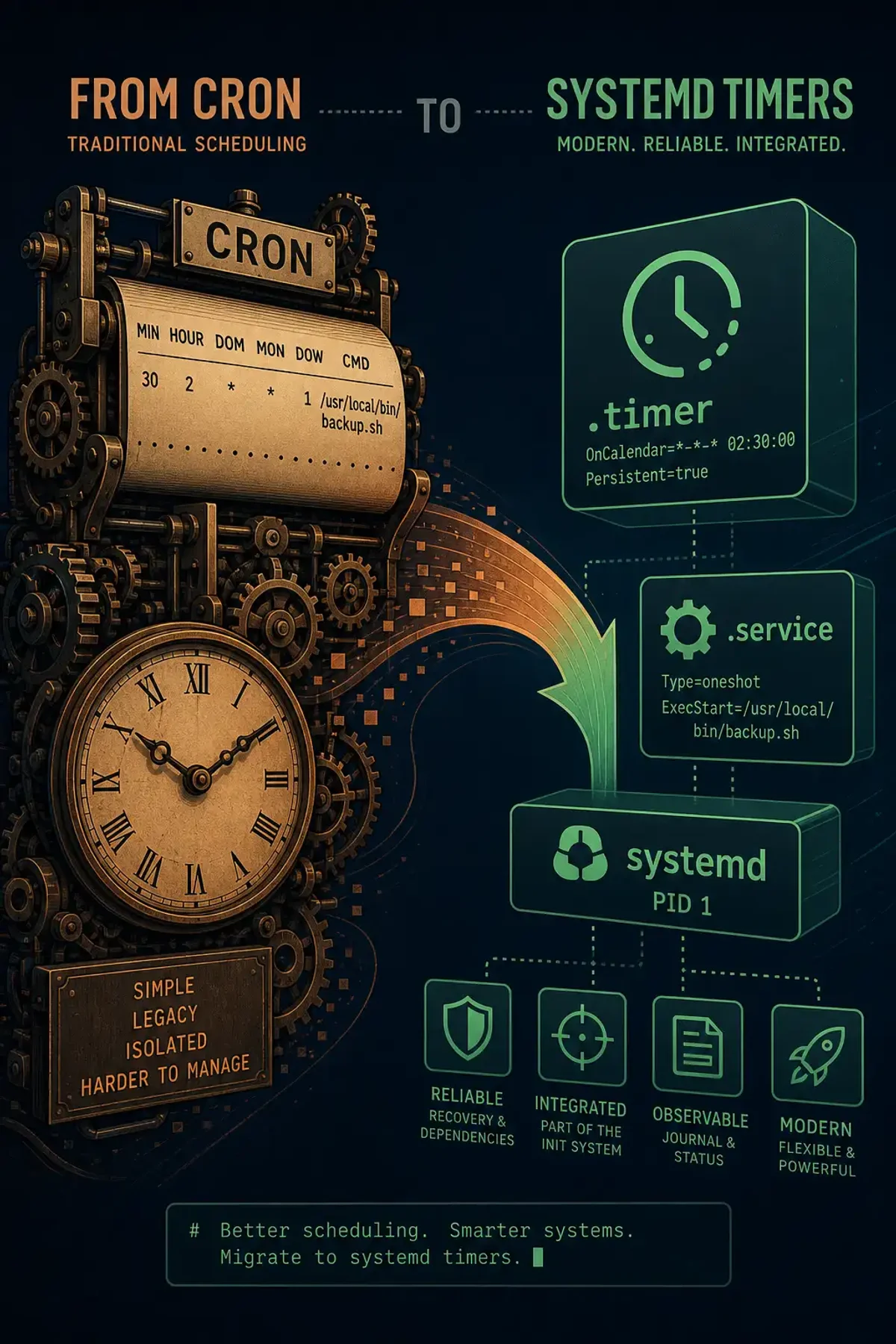
Cron has served us well for decades, but it has real limitations. Cron jobs run in a minimal environment with no dependency tracking, no resource control, and no easy way to see whether the last run succeeded or failed. Systemd timers address all of these.
Key advantages of systemd timers over cron:
- Job dependency tracking: A timer can wait for network-online.target or mount points
- Resource control: CPUQuota, MemoryMax, and IOWeight are built in
- Logging: Output goes to journald, queryable with journalctl
- Randomized delays:
RandomizedDelaySecprevents thundering herds - Persistent timers: Missed runs (server was down) execute on next boot
Anatomy of a Systemd Timer
A systemd timer requires two units: a .service and a .timer.
The service unit (/etc/systemd/system/backup.service):
[Unit]
Description=Daily database backup
After=network-online.target postgresql.service
Wants=network-online.target

[Service]
Type=oneshot
User=backup
ExecStart=/usr/local/bin/backup-db.sh
The timer unit (/etc/systemd/system/backup.timer):
[Unit]
Description=Daily database backup timer
Requires=backup.service

[Timer]
OnCalendar=daily
RandomizedDelaySec=300
Persistent=true

[Install]
WantedBy=timers.target
Enable and start:
sudo systemctl enable backup.timer
sudo systemctl start backup.timer
OnCalendar Syntax
The OnCalendar field uses a flexible syntax:
# Every day at 2am
OnCalendar=daily
OnCalendar=*-*-* 02:00:00

# Every Monday at 3am
OnCalendar=Mon *-*-* 03:00:00

# Every 15 minutes
OnCalendar=*:0/15

# First day of every month
OnCalendar=*-*-01 00:00:00
Check your timer expressions:
systemd-analyze calendar "Mon *-*-* 03:00:00"Cron Equivalents
| Cron | Systemd Timer |
|---|---|
*/5 * * * * | OnCalendar=*:0/5 |
0 2 * * * | OnCalendar=daily or OnCalendar=*-*-* 02:00:00 |
0 0 * * 0 | OnCalendar=Sun *-*-* 00:00:00 |
@reboot | No OnCalendar — just WantedBy=multi-user.target in service |
Monitoring Timer Status
# List all timers
systemctl list-timers

# Check next run time
systemctl status backup.timer

# See last execution result
systemctl status backup.service

# Logs from all runs
journalctl -u backup.service
Resource Control
One of systemd’s best features is per-service resource limits:
[Service]
Type=oneshot
CPUQuota=50%
MemoryMax=512M
IOWeight=10
ExecStart=/usr/local/bin/heavy-job.sh
This prevents a runaway backup script from crushing your server.
Migrating a Complex Cron Job
Here’s a real migration of a cron job with environment variables:
# Original crontab entry
# 0 3 * * * DB_HOST=prod-db DB_NAME=app /opt/scripts/cleanup.sh >> /var/log/cleanup.log 2>&1
The systemd migration:
# /etc/systemd/system/db-cleanup.service
[Unit]
Description=Database cleanup job
After=network-online.target

[Service]
Type=oneshot
Environment="DB_HOST=prod-db"
Environment="DB_NAME=app"
ExecStart=/opt/scripts/cleanup.sh
StandardOutput=journal
StandardError=journal
# /etc/systemd/system/db-cleanup.timer
[Unit]
Description=Daily database cleanup
[Timer]
OnCalendar=*-*-* 03:00:00
Persistent=true
[Install]
WantedBy=timers.targetEmail on failure:
[Unit]
Description=Database cleanup job
OnFailure=notify-admin@%N.service

[Service]
...
Common Pitfalls
- Forgetting
Persistent=true: Without it, if the server was down at the scheduled time, the job is skipped. With it, the job runs immediately on next boot. - Type=oneshot vs Type=simple: Use
oneshotfor scripts that run and exit. The service stays in “activating” until the script finishes, which is what you want. - Environment isolation: Cron runs with a minimal environment. Systemd services have an even cleaner one. Explicitly set HOME, PATH, and any app-specific variables.
Summary
Systemd timers give you better logging, resource control, and reliability than cron. Start by migrating your most critical cron jobs first — the ones where missed runs matter most.