You change one line of CSS. Docker rebuilds the entire image — pulling base layers, reinstalling npm packages, copying the whole source tree again. By the time the container comes back up, you’ve forgotten what you were testing. Multiply that by 40 times a day and you’ve spent more time watching Docker build than actually writing code.
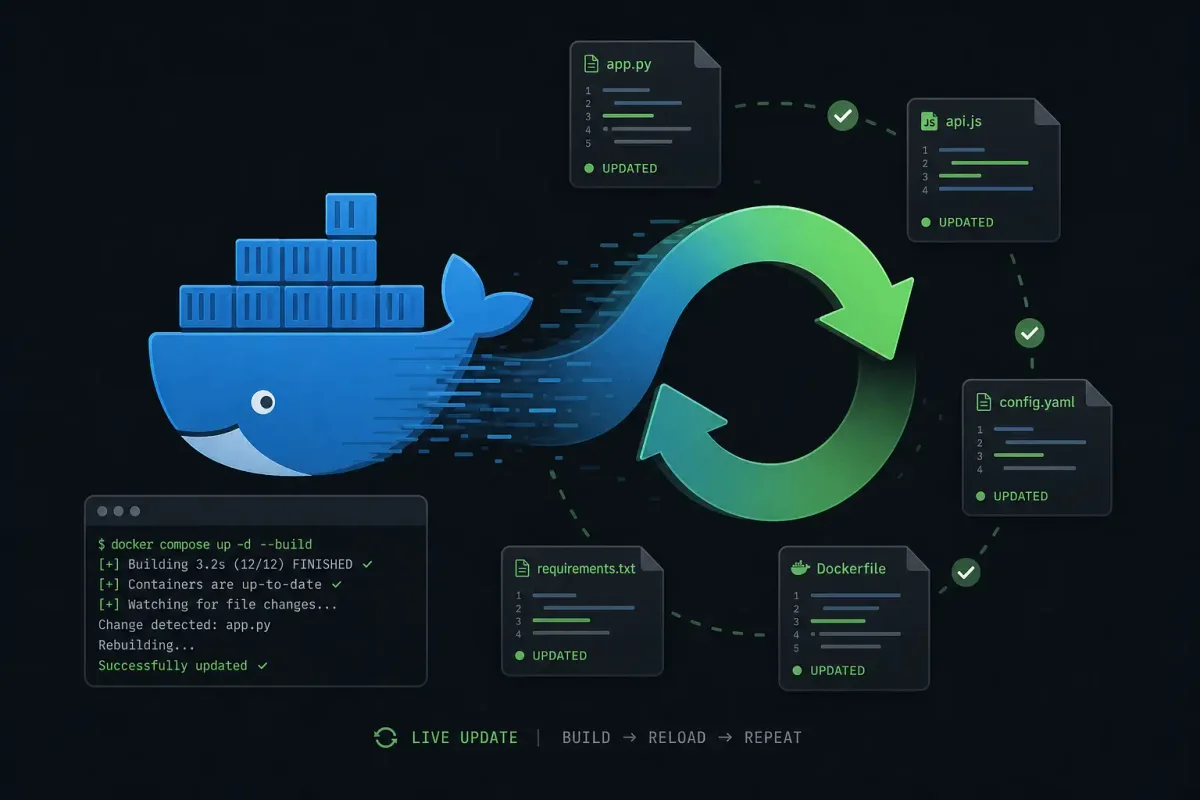
Docker Compose Watch fixes this. Introduced as an experimental feature in Compose v2.22 and stabilized through 2025 into a GA feature, the watch attribute sits under the develop section of your compose file and handles file changes intelligently — syncing source files into running containers without a rebuild, or triggering a targeted rebuild only when dependencies actually change.
If you’re still relying on bind mounts and manually restarting containers, this is the upgrade your development workflow has been waiting for.
What Docker Compose Watch Actually Does
Under the hood, Compose Watch monitors your host filesystem for changes matching the paths you’ve configured. When a file changes, it executes one of three actions:
| Action | What Happens | When to Use |
|---|---|---|
sync | Copies the changed file into the running container at the target path. No restart. | Source code changes in interpreted languages (JS, Python, PHP) |
rebuild | Triggers a full docker compose up --build for that service — new image, new container. | Dependency changes (package.json, requirements.txt, go.mod, Dockerfile) |
sync+restart | Copies the file, then restarts the container. | Compiled languages or apps that need a process restart to pick up changes |
The key difference from bind mounts: Compose Watch does a one-shot copy on change, not a continuous two-way sync. This matters on platforms where bind mount I/O is slow (macOS, Windows with WSL2 cross-filesystem mounts), and it means your container’s filesystem isn’t constantly reflecting every temporary editor swap file or intermediate build artifact.
Anatomy of the watch Configuration
The watch attribute lives under services.<name>.develop in your compose file. Here’s the full structure:
services:
  app:
    build: .
    develop:
      watch:
        - path: ./src
          action: sync
          target: /app/src
          ignore:
            - "*.pyc"
            - "__pycache__/"
        - path: ./package.json
          action: rebuild
        - path: ./go.mod
          action: rebuild
Each watch entry defines:
path— Host path relative to the project directory (where your compose.yaml lives). This is the directory or file Compose monitors for changes.action— What to do when a file underpathchanges. One ofsync,rebuild, orsync+restart.target(sync/sync+restart only) — Absolute path inside the container where changed files are copied. Must exist in the container already.ignore(optional) — Glob patterns for files to skip. Uses the same syntax as.dockerignore. Essential for skipping editor temp files,node_modules, bytecode caches, and.git.
You then start the service with:
docker compose up --watchThe --watch flag enables file monitoring. Without it, the develop.watch section is ignored and the container starts normally.
Action 1: sync — Zero-Downtime Code Updates
The sync action is the star of the show. It copies changed files from your host into a running container path without restarting the container process. For interpreted-language development (Node.js, Python with a reloader, PHP), this means you save a file and see the change in under a second — no Docker rebuild, no container restart.
Node.js Example
Here’s a complete compose.yaml for a Node.js Express app:
services:
  api:
    build:
      context: .
      target: development
    ports:
      - "3000:3000"
    environment:
      - NODE_ENV=development
    command: npx nodemon src/index.js
    develop:
      watch:
        - path: ./src
          action: sync
          target: /app/src
        - path: ./package.json
          action: rebuild
        - path: ./package-lock.json
          action: rebuild
And the corresponding Dockerfile uses a multi-stage build so the dev target has nodemon:
# Dockerfile
FROM node:22-alpine AS development
WORKDIR /app
COPY package*.json ./
RUN npm install
COPY . .
RUN npm install -g nodemon
CMD ["npx", "nodemon", "src/index.js"]
With this setup, editing any file under ./src triggers a sync into /app/src inside the container. Nodemon detects the change and restarts the Node process. Changing package.json triggers a full rebuild because dependencies might have changed.
The workflow becomes:
# Terminal 1: Start with watch
$ docker compose up --watch
[+] Running 1/0
 ✔ Container api  Created
Attaching to api
api  | [nodemon] starting `node src/index.js`
api  | Server listening on port 3000
api  | Syncing api after changes were detected:
api  |   - src/routes/users.js
api  | [nodemon] restarting due to changes...
api  | Server listening on port 3000

# Terminal 2: Edit and save src/routes/users.js
# Watch output updates immediately — no docker commands needed
Python Flask Example
Same pattern for a Flask app with the built-in reloader:
services:
  web:
    build:
      context: .
      target: dev
    ports:
      - "5000:5000"
    environment:
      - FLASK_ENV=development
    command: flask run --host=0.0.0.0 --reload
    develop:
      watch:
        - path: ./app
          action: sync
          target: /app/app
          ignore:
            - "*.pyc"
            - "__pycache__/"
            - ".pytest_cache/"
        - path: ./requirements.txt
          action: rebuild
The ignore patterns prevent bytecode cache files from triggering unnecessary syncs. Flask’s --reload flag picks up the synced .py files and restarts automatically.
Action 2: rebuild — Smart Image Recreation
The rebuild action is for files that, when changed, mean the container image itself is stale. Dependency manifests, Dockerfiles, and build scripts all fall into this category.
When Compose detects a change matching a rebuild path, it stops the existing container, rebuilds the image from the build context, and starts a fresh container with the same configuration. This is a full cycle, but unlike manual docker compose up --build, you don’t have to remember to do it.
A practical multi-watch setup separates concerns clearly:
services:
  app:
    build: .
    develop:
      watch:
        - path: ./src
          action: sync
          target: /app/src
        - path: ./package.json
          action: rebuild
        - path: ./Dockerfile
          action: rebuild
        - path: ./tsconfig.json
          action: rebuild
Three rebuild triggers and one sync. The sync handles 95% of your daily edits. The rebuild triggers catch the occasional dependency bump or config change without you having to think about it.
One important caveat: if you’re using a bind mount for the same directory you’re syncing, Compose Watch and the bind mount will fight each other. Pick one — and if you’re using watch, remove the corresponding volumes entry for the synced path.
Action 3: sync+restart — For When the Process Needs a Kick
Some language runtimes don’t have built-in file watchers, or the application caches code at startup and won’t pick up synced files. The sync+restart action covers this case: it syncs the changed file, then issues a container restart.
services:
  worker:
    build: .
    command: python worker.py
    develop:
      watch:
        - path: ./worker
          action: sync+restart
          target: /app/worker
After the sync completes, Docker restarts the container (equivalent to docker compose restart worker). The container gets a new process with the updated code, but keeps the same filesystem state, volumes, and network — faster than a full rebuild, slower than a pure sync.
This is also useful for compiled languages during development. For a Go app:
services:
  go-app:
    build:
      context: .
      target: dev
    command: go run ./cmd/server
    develop:
      watch:
        - path: ./cmd
          action: sync+restart
          target: /app/cmd
        - path: ./internal
          action: sync+restart
          target: /app/internal
        - path: ./go.mod
          action: rebuild
        - path: ./go.sum
          action: rebuild
The sync+restart copies the new Go source files, then restarts the container which re-runs go run. For a tighter loop during Go development, you’d use a tool like Air or CompileDaemon inside the container alongside pure sync, but sync+restart with go run works for simpler projects.
Watch vs. Bind Mounts: When to Use Which
Bind mounts have been the go-to for development for years, and they’re still useful. Here’s a direct comparison:
Bind Mount (volumes:) | Compose Watch (develop.watch) | |
|---|---|---|
| Mechanism | Kernel-level mount, continuous two-way sync | User-space file copy on change detection |
| Performance (macOS) | Slow — osxfs/virtiofs overhead on every read | Fast — one-time copy per change, container reads from native CoW layer |
| Performance (Linux) | Near-native | Slightly more overhead per change (file copy) |
| File deletion | Reflected immediately in container | Not synced — deleted host files remain in container |
| Node modules | Bind-mounting entire project dir exposes host node_modules, which may be the wrong platform | Only synced paths are affected; container keeps its own node_modules |
| Lifecycle hooks | None | Can trigger rebuilds automatically |
| Startup speed | Instant (no copy) | Instant (no initial copy — only on change) |
The rule of thumb: if you’re on macOS or Windows and your development loop involves saving files and refreshing a browser, Compose Watch will feel significantly faster than bind mounts. If you’re on Linux with native filesystem performance and you need true bidirectional sync (including file deletions), bind mounts may still be the right call.
For most web development workflows in 2026, Compose Watch with sync + a language-level file watcher (nodemon, Flask reloader, etc.) is the sweet spot.
Real Multi-Service Example: A Full-Stack App
Here’s a realistic setup for a full-stack application with a React frontend, Express API, and PostgreSQL database:
services:
  frontend:
    build:
      context: ./frontend
      target: development
    ports:
      - "5173:5173"
    command: npm run dev
    develop:
      watch:
        - path: ./frontend/src
          action: sync
          target: /app/src
        - path: ./frontend/public
          action: sync
          target: /app/public
        - path: ./frontend/package.json
          action: rebuild
        - path: ./frontend/vite.config.ts
          action: rebuild

  api:
    build:
      context: ./api
      target: development
    ports:
      - "3000:3000"
    environment:
      - DATABASE_URL=postgresql://user:pass@db:5432/app
    command: npx nodemon src/index.ts
    develop:
      watch:
        - path: ./api/src
          action: sync
          target: /app/src
        - path: ./api/package.json
          action: rebuild
        - path: ./api/tsconfig.json
          action: rebuild

  db:
    image: postgres:16-alpine
    environment:
      POSTGRES_USER: user
      POSTGRES_PASSWORD: pass
      POSTGRES_DB: app
    volumes:
      - pgdata:/var/lib/postgresql/data
    ports:
      - "5432:5432"

volumes:
  pgdata:
Start everything with one command:
docker compose up --watchNow when you edit frontend/src/App.tsx, Vite’s HMR kicks in after the sync, and your browser updates before you can switch tabs. When you add a new npm package, the rebuild triggers automatically. The database container just runs — no watch config needed.
Configuring Global Ignore Patterns
You can set project-wide ignore patterns at the top of your compose file instead of repeating them per service:
x-watch-ignore: &watch-ignore
  - "*.swp"
  - "*.swo"
  - "*~"
  - ".git/"
  - "node_modules/"
  - "*.pyc"
  - "__pycache__/"
  - ".DS_Store"

services:
  app:
    build: .
    develop:
      watch:
        - path: ./src
          action: sync
          target: /app/src
          ignore: *watch-ignore
The x- prefix marks it as an extension field — Compose ignores it structurally but YAML anchors make it reusable.
Troubleshooting Common Issues
”Changes not being detected”
First, verify your path is relative to the project directory (where compose.yaml lives), not absolute. Second, check that the files you’re editing aren’t in an ignore pattern. Third, ensure you started with --watch:
# Did you forget --watch?
$ docker compose up          # Watch config ignored
$ docker compose up --watch  # Watch config active
“Synced files not appearing in container”
The target path must exist inside the container. If you’re syncing to /app/src, the directory /app/src needs to be created during the build (via COPY or RUN mkdir). Compose Watch won’t create missing directories.
To verify your sync is actually working:
$ docker compose exec app ls -la /app/src
$ docker compose exec app cat /app/src/routes/users.js
“Container restarts but old code is still running”
This is almost always a sync that should have been sync+restart. If your app loads code once at startup and doesn’t watch for changes, a sync will copy the new file but the running process won’t see it. Switch to sync+restart or add a file watcher inside the container.
”Rebuild is too slow”
A rebuild action triggers a full Docker build. If your Dockerfile isn’t optimized, this can take minutes. Make sure you’re using multi-stage builds and caching layers effectively:
# Layer order matters — copy dependencies first, then source
FROM node:22-alpine AS development
WORKDIR /app
COPY package*.json ./        # Layer 1: dependencies (rarely changes)
RUN npm install              # Layer 2: installed deps (cached)
COPY . .                     # Layer 3: source (changes often, but fast copy)
This way, a rebuild triggered by package.json changes only invalidates layers 1 and 2. A rebuild triggered by source changes is still fast because Docker can reuse layers 1 and 2 from cache.
One-Liner to Convert a Bind-Mount Project
If you have an existing project using bind mounts for development, here’s the minimal conversion:
# Before: bind mount in compose.yaml
#   volumes:
#     - ./src:/app/src

# After: replace with watch
#   develop:
#     watch:
#       - path: ./src
#         action: sync
#         target: /app/src

# Then run:
$ docker compose up --watch
Remove the volumes entry for the synced path — keeping both results in the bind mount shadowing the synced files.
Summary
Docker Compose Watch eliminates the worst part of containerized development: the rebuild loop. Three actions cover every use case:
synccopies changed files into a running container — sub-second feedback for interpreted languages with a reloader.rebuildrebuilds the image when dependencies or config change — hands-off, no manualdocker compose buildneeded.sync+restartsyncs and restarts the container — the middle ground for compiled languages and apps without built-in watchers.
Add a develop.watch block to your compose file, start with docker compose up --watch, and stop waiting for Docker to rebuild images every time you hit save. Your development loop will thank you.