Why Remote State Matters
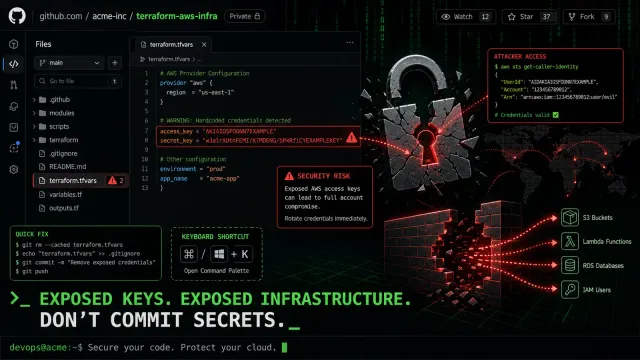
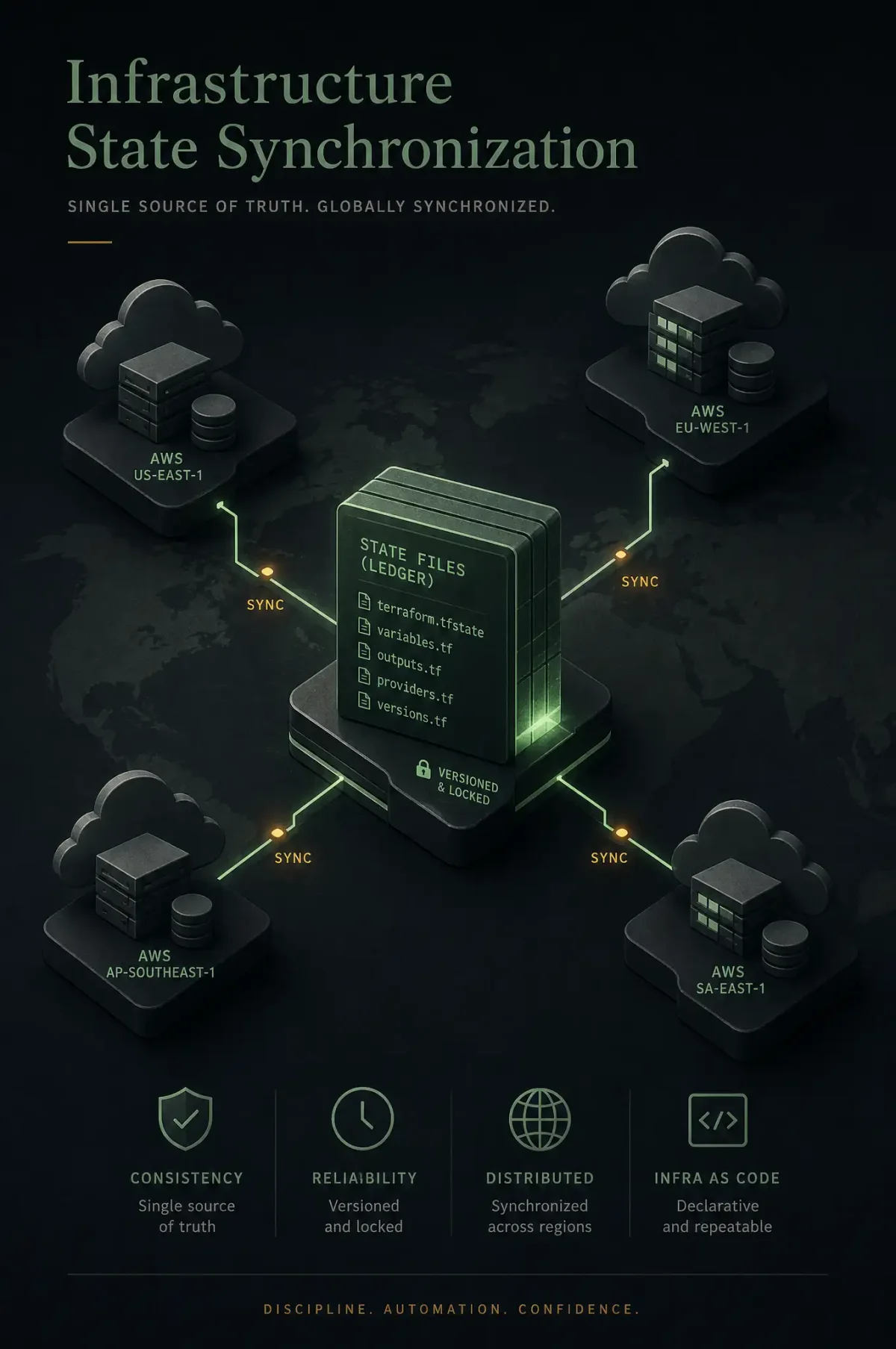
Terraform state files track the mapping between your configuration and real infrastructure. That state file contains everything Terraform knows about your resources — including sensitive values like database passwords and API keys. Storing it locally (or in git) is a disaster waiting to happen.
Remote state solves three problems:
- Team collaboration: Multiple people can run Terraform without overwriting each other’s changes
- State locking: Prevents concurrent operations that corrupt state
- Secret management: Sensitive values stay encrypted in the backend, never committed to git
S3 Backend Configuration
AWS S3 with DynamoDB locking is the most common remote state setup:
terraform {
  backend "s3" {
    bucket         = "myorg-terraform-state"
    key            = "prod/network/terraform.tfstate"
    region         = "us-east-1"
    encrypt        = true
    dynamodb_table = "terraform-state-lock"
  }
}
Create the resources first (chicken-and-egg problem — you need state to manage the resources that store state):
# Create S3 bucket with versioning
aws s3api create-bucket \
  --bucket myorg-terraform-state \
  --region us-east-1

aws s3api put-bucket-versioning \
  --bucket myorg-terraform-state \
  --versioning-configuration Status=Enabled

aws s3api put-bucket-encryption \
  --bucket myorg-terraform-state \
  --server-side-encryption-configuration '{
    "Rules": [{
      "ApplyServerSideEncryptionByDefault": {
        "SSEAlgorithm": "aws:kms"
      }
    }]
  }'

# Create DynamoDB table for locking
aws dynamodb create-table \
  --table-name terraform-state-lock \
  --attribute-definitions AttributeName=LockID,AttributeType=S \
  --key-schema AttributeName=LockID,KeyType=HASH \
  --billing-mode PAY_PER_REQUEST
State File Organization
For larger infrastructures, organize state files by environment and component:
myorg-terraform-state/
  prod/
    networking/terraform.tfstate
    compute/terraform.tfstate
    database/terraform.tfstate
  staging/
    networking/terraform.tfstate
    compute/terraform.tfstate
This limits blast radius: a mistake in the database configuration doesn’t affect networking state. Use data sources to reference outputs across state files:
data "terraform_remote_state" "networking" {
  backend = "s3"
  config = {
    bucket = "myorg-terraform-state"
    key    = "prod/networking/terraform.tfstate"
    region = "us-east-1"
  }
}

resource "aws_instance" "web" {
  subnet_id = data.terraform_remote_state.networking.outputs.public_subnet_id
}
State Locking
Without locking, two people running terraform apply simultaneously will corrupt the state. DynamoDB provides distributed locking:
terraform {
  backend "s3" {
    bucket         = "myorg-terraform-state"
    key            = "terraform.tfstate"
    dynamodb_table = "terraform-state-lock"
  }
}
Terraform acquires the lock before any state-modifying operation (apply, import, state mv). If the lock is held, it waits with an error message showing who holds it.
Force-unlock if something goes wrong (use with extreme caution):
terraform force-unlock LOCK_IDMigrating Local State to Remote
If you started with local state:
# Add backend configuration to your code
terraform {
  backend "s3" { ... }
}

# Run init — Terraform offers to migrate
terraform init
# Type "yes" to migrate
Verify after migration:
aws s3 ls s3://myorg-terraform-state/Workspace-Based State Separation
For quick environment isolation, use workspaces (suitable for small projects):
terraform workspace new staging
terraform workspace new production
terraform workspace select staging
Each workspace stores its state at a different key path in the same S3 bucket. For larger projects, prefer separate state files over workspaces — they’re more explicit and less error-prone.
State Security
- Never commit state to git: Add
*.tfstate*and*.tfvarsto.gitignore - Enable S3 encryption: Both SSE-S3 and SSE-KMS work; KMS gives you audit trails
- Restrict bucket access: Use IAM policies to limit which roles can read/write state
- Enable access logging: Log all state access to a separate S3 bucket for audit purposes
Example bucket policy:
{
  "Version": "2012-10-17",
  "Statement": [{
    "Effect": "Deny",
    "Principal": "*",
    "Action": "s3:*",
    "Resource": "arn:aws:s3:::myorg-terraform-state/*",
    "Condition": {
      "Bool": {"aws:SecureTransport": "false"}
    }
  }]
}
Troubleshooting
“Error acquiring state lock”: Someone else is running Terraform. Wait, or check the DynamoDB table for stale locks.
“State data in S3 does not have expected content”: Someone pushed state manually or S3 eventual consistency caused a read. Enable versioning so you can recover.
“Backend configuration changed”: Run terraform init -reconfigure if you changed the backend config.