There is nothing quite as unsettling as seeing [FAILED] flash across your screen during a server boot. A service that was working perfectly yesterday now refuses to start, and your application is down. The good news? systemd gives you everything you need to diagnose and fix these failures — if you know where to look.
This guide walks you through a systematic approach to troubleshooting systemd service failures, from your very first command to resolving the most stubborn edge cases.
Step 1: Check the Service Status Immediately
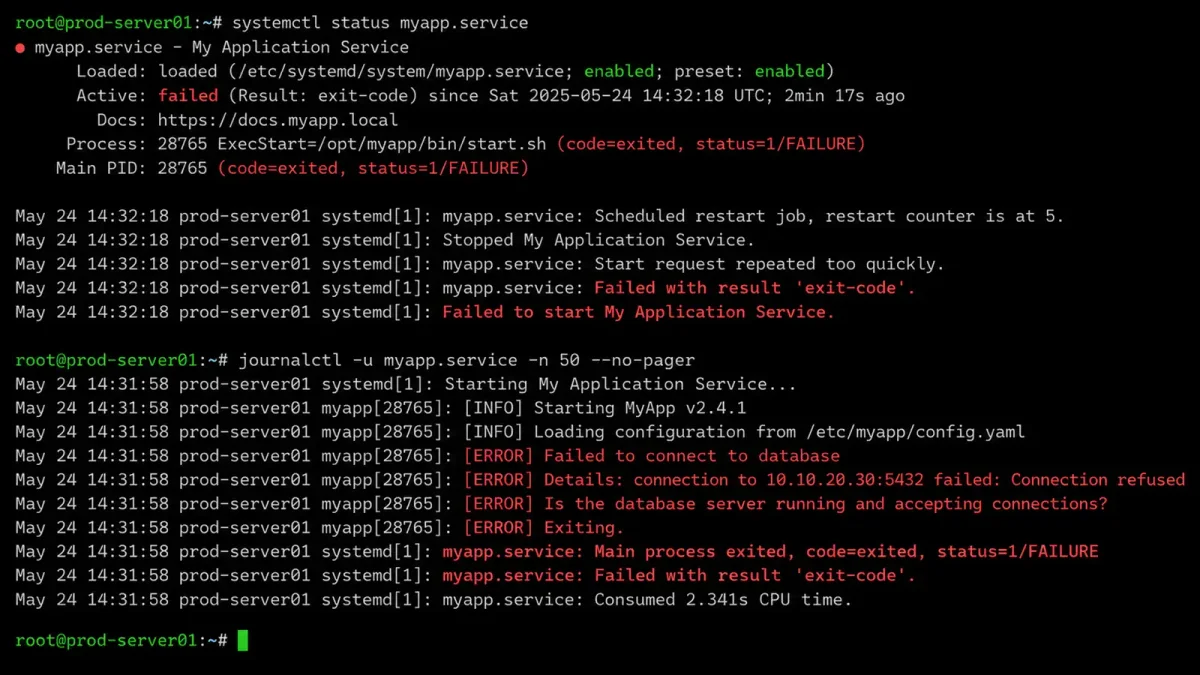
When a service fails to start, the fastest first step is always systemctl status:
sudo systemctl status nginx.serviceThis output is dense with information. Focus on these sections:
- Active line — shows the current state and exit code
- Main PID — tells you if the process ever started
- CGroup tree — reveals child processes
- Recent log lines — the last few journal entries, often containing the actual error message
● nginx.service - A high performance web server
     Loaded: loaded (/lib/systemd/system/nginx.service; enabled; vendor preset: enabled)
     Active: failed (Result: exit-code) since Fri 2026-06-13 08:15:22 UTC; 3min ago
   Main PID: 4521 (code=exited, status=1/FAILURE)
        CPU: 12ms

Jun 13 08:15:22 server01 nginx[4521]: nginx: [emerg] bind() to 0.0.0.0:80 failed (98: Address already in use)
In this example, the cause is immediately visible: something else is already listening on port 80.
Tip: If the service name is unknown, use
systemctl --failedto list all units currently in a failed state.
Step 2: Read the Full Journal for the Service
systemctl status only shows the last ~10 lines. For the complete picture, query the journal:
# Full journal for the service since last boot
sudo journalctl -u nginx.service -b

# Reverse chronological order (newest first)
sudo journalctl -u nginx.service -b -r

# Filter to error-level messages only
sudo journalctl -u nginx.service -p err

# Follow logs in real time while you attempt a restart
sudo journalctl -f -u nginx.service
The -b flag restricts output to the current boot, which eliminates noise from previous sessions. Add --since and --until for precise time windows:
sudo journalctl -u nginx.service --since "2026-06-13 08:00:00" --until "2026-06-13 09:00:00"When scanning journal output, look for these keywords:
ERROR,CRIT,EMERG— severity markersPermission denied— ownership or SELinux issuesNo such file or directory— missing pathsAddress already in use— port conflictstimeout— startup took too longkilled,OOM— resource exhaustion
Step 3: Identify the Failure Pattern
Systemd service failures generally fall into one of these categories. Once you identify the pattern, the fix becomes straightforward.
Pattern 1: Permission Denied Errors
Symptom: Journal shows “Permission denied” or “Access denied” when the service tries to read a config file, write to a directory, or bind to a privileged port.
Diagnosis:
# Check the service journal for permission errors
sudo journalctl -u myapp.service -b | grep -i "permission\|denied\|forbidden"

# Check file ownership and permissions
ls -la /etc/myapp/config.yaml
ls -la /var/log/myapp/

# Check if AppArmor or SELinux is blocking access
sudo aa-status 2>/dev/null
sudo getenforce 2>/dev/null
Fix:
# Correct ownership (example: app running as www-data)
sudo chown -R www-data:www-data /var/log/myapp/
sudo chmod 750 /var/log/myapp/

# If AppArmor is the culprit, check the profile
sudo aa-logprof

# If SELinux is enforcing, check for denials
sudo ausearch -m avc -ts recent
sudo restorecon -rv /var/log/myapp/
Pattern 2: Missing Executable or File
Symptom: ExecStart points to a binary or script that doesn’t exist, often after an upgrade or manual file deletion.
Diagnosis:
# View the unit file to see ExecStart path
systemctl cat myapp.service | grep ExecStart

# Verify the binary exists
which /usr/local/bin/myapp
ls -la /usr/local/bin/myapp
Fix:
# If the binary was moved, update the unit file
sudo systemctl edit myapp.service
# Add or modify:
# [Service]
# ExecStart=/usr/bin/myapp

# Reload systemd and restart
sudo systemctl daemon-reload
sudo systemctl restart myapp.service
Pattern 3: Port Already in Use
Symptom: “Address already in use” or “bind failed” — another process is occupying the port your service needs.
Diagnosis:
# Find what's using port 80
sudo ss -tlnp | grep :80
sudo lsof -i :80

# If it's a zombie process from a previous failed restart
sudo systemctl status nginx
ps aux | grep nginx
Fix:
# Stop the conflicting process
sudo kill $(sudo lsof -t -i:80)

# Or if it's a leftover systemd instance
sudo systemctl stop nginx
sudo systemctl start nginx

# Check for duplicate unit files causing confusion
systemctl list-unit-files | grep nginx
Pattern 4: Configuration Syntax Error
Symptom: The service starts but immediately exits with an error in the config parsing phase.
Diagnosis:
# Many services have built-in config test commands
nginx -t
apache2ctl configtest
sshd -t

# Check for typos in the systemd unit itself
systemd-analyze verify myapp.service
Fix:
# Fix the config file based on test output
sudo nano /etc/nginx/nginx.conf

# After fixing, reload
sudo systemctl daemon-reload
sudo systemctl restart nginx
Pattern 5: Dependency Failure
Symptom: The service fails because another service it depends on isn’t running. Systemd will report this as a dependency error.
Diagnosis:
# Show what this service depends on
systemctl list-dependencies myapp.service

# Check status of dependencies
systemctl status postgresql.service

# View the dependency chain in the unit file
systemctl cat myapp.service | grep -E "Requires|After|Wants"
Fix:
# Start the missing dependency first
sudo systemctl start postgresql.service
sudo systemctl enable postgresql.service

# Then start your service
sudo systemctl restart myapp.service
Pattern 6: Timeout During Startup
Symptom: The service starts but takes longer than systemd’s default timeout (usually 90 seconds), causing systemd to kill it.
Diagnosis:
# Look for timeout messages
sudo journalctl -u myapp.service -b | grep -i "timeout\|killed\|timed out"

# Check if the service is doing something slow at startup
sudo journalctl -u myapp.service -b | head -30
Fix:
# Increase the startup timeout for this service
sudo systemctl edit myapp.service
# Add:
# [Service]
# TimeoutStartSec=300

sudo systemctl daemon-reload
sudo systemctl restart myapp.service
Pattern 7: Resource Limits (OOM/CGroup)
Symptom: The service is killed by the OOM killer or exceeds a cgroup resource limit.
Diagnosis:
# Search journal for OOM events
sudo journalctl -k | grep -i "oom\|out of memory"

# Check current resource limits for the service
systemctl show myapp.service | grep -i "memory\|cpu"
Fix:
# Adjust resource limits
sudo systemctl edit myapp.service
# Add:
# [Service]
# MemoryMax=2G
# MemoryHigh=1500M

sudo systemctl daemon-reload
sudo systemctl restart myapp.service
Step 4: The Recovery Workflow
Here is a practical step-by-step workflow you can follow every time a service fails:
# 1. Check status for quick clues
sudo systemctl status myapp.service

# 2. Read the journal for details
sudo journalctl -u myapp.service -b --no-pager | tail -50

# 3. If you made changes to the unit file, reload
sudo systemctl daemon-reload

# 4. Attempt a restart
sudo systemctl restart myapp.service

# 5. Watch the live output
sudo journalctl -f -u myapp.service
Step 5: Override Without Modifying the Original Unit File
One of the most powerful systemd features is the drop-in override, which lets you customize a service without editing the original unit file (which would be overwritten by package updates):
# Open an override editor
sudo systemctl edit myapp.service

# This creates /etc/systemd/system/myapp.service.d/override.conf
# Add your changes:
# [Service]
# Environment=MY_VAR=value
# Restart=always
# RestartSec=5
After saving, always reload and restart:
sudo systemctl daemon-reload
sudo systemctl restart myapp.service
Preventing Future Failures
A few proactive measures can save you from late-night troubleshooting:
-
Enable automatic restart for critical services with
Restart=alwaysin the unit file. -
Monitor failed units with a simple cron job:
systemctl --failed --no-legend | wc -l -
Use
systemd-analyzeto identify slow services that might timeout:systemd-analyze critical-chain myapp.service -
Test config changes before reloading — use built-in config test commands like
nginx -torsshd -t. -
Set up log rotation so journal files don’t fill your disk:
sudo journalctl --vacuum-size=500M
Quick Reference Card
| Symptom | Command | Fix |
|---|---|---|
| Service won’t start | systemctl status <svc> | Check logs first |
| Need full logs | journalctl -u <svc> -b | Identify error pattern |
| Permission denied | ls -la /path/to/file | Fix ownership/SELinux |
| Port conflict | ss -tlnp | grep :PORT | Kill conflicting process |
| Missing binary | which /path/to/binary | Update ExecStart path |
| Config error | nginx -t (or similar) | Fix syntax error |
| Dependency missing | systemctl list-dependencies <svc> | Start dependency first |
| Startup timeout | journalctl -u <svc> | grep timeout | Increase TimeoutStartSec |
| OOM killed | journalctl -k | grep -i oom | Increase MemoryMax |
| Safe overrides | systemctl edit <svc> | Creates drop-in override |
Summary
Systemd failures look intimidating at first glance, but the diagnostic tools are comprehensive and the failure patterns are predictable. The key workflow is always the same: status → journal → identify pattern → fix → daemon-reload → restart.
By understanding the seven common failure patterns covered in this guide, you can diagnose most systemd service failures in under five minutes. Keep the quick reference card handy, and the next time you see [FAILED] on your screen, you will know exactly what to do.