SSH is the most common way to access a remote Linux server, and when it fails, the error messages are often vague enough to send you down the wrong path. “Connection refused.” “Connection timed out.” “Permission denied (publickey).” Each of these points to a different underlying problem, and knowing which one you are dealing with saves hours of guessing.
This guide walks through the most common SSH connection failures, explains what each error actually means, and gives you a systematic way to diagnose and fix the problem. The approach works the same whether you are connecting to a cloud VPS, a home server, or a machine on your office network.
Before you start: the one command that saves you time
Before diving into specific errors, run this:
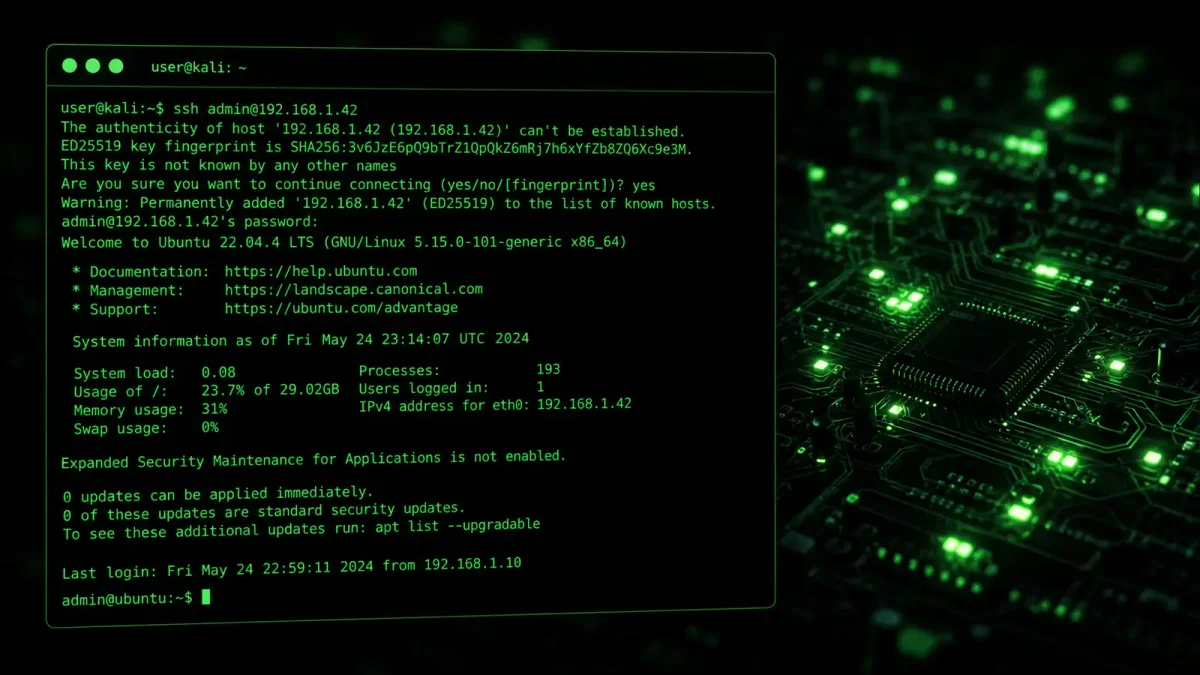
ssh -vvv user@your-serverThe -vvv flag enables maximum verbosity. SSH will print every step of the connection process: DNS resolution, TCP connection, key exchange, authentication attempt, and session setup. Most of the time, the verbose output tells you exactly where the connection fails, which narrows the problem to a single category.
If you can run this command from the client side, do it first. It will save you from making assumptions about which end of the connection has the problem.
Error 1: “Connection refused”
This error means the TCP connection was actively rejected by the server. The server received your connection request and responded with a RST packet, which means something on the server side is explicitly saying “no.”
The most common causes, in order of likelihood:
sshd is not running. Check with:
sudo systemctl status sshdIf the service is inactive or failed, start it:
sudo systemctl start sshd
sudo systemctl enable sshd
sshd is listening on a different port. The default SSH port is 22, but many hardening guides recommend changing it. If the server’s sshd is configured to listen on port 2222 and you are trying to connect on port 22, you will get “Connection refused.” Check the server’s sshd configuration:
sudo grep -i "^Port" /etc/ssh/sshd_configIf you see a non-standard port, connect with:
ssh -p 2222 user@your-serverA firewall is blocking port 22. If UFW or iptables is configured to reject SSH connections, the server will refuse them even if sshd is running. Check UFW:
sudo ufw statusIf SSH is not listed as allowed:
sudo ufw allow sshFor iptables:
sudo iptables -L -n | grep 22If you see a DROP or REJECT rule for port 22, remove or modify it.
Cloud security group or network ACL. If your server is on AWS, GCP, or Azure, the cloud provider’s firewall (security group or network rules) may be blocking port 22. This is separate from the OS-level firewall. Check your cloud provider’s console to confirm port 22 (or your custom SSH port) is allowed inbound.
Error 2: “Connection timed out”
A timeout means the TCP connection attempt never received a response. Unlike “Connection refused,” where the server actively rejected the connection, a timeout means the packets are being silently dropped somewhere between your client and the server.
The server is unreachable. Before assuming an SSH problem, verify basic connectivity:
ping your-serverIf ping fails, the problem is not SSH. It is network-level: the server might be down, the IP address might be wrong, or there might be a routing problem.
Firewall is dropping packets. If ping works but SSH times out, a firewall is likely dropping SSH packets silently (DROP rather than REJECT). On the server side, check:
sudo iptables -L -n | grep -E "DROP|REJECT"A DROP rule for port 22 will cause timeouts because the client never receives a response.
DNS is resolving to the wrong IP. If the server’s IP address has changed (common with cloud instances that get reassigned), your DNS might be pointing to an old address. Verify:
nslookup your-serverCompare the result with the server’s actual IP. If they differ, update your DNS or connect directly with the IP address.
Network path issue. Sometimes the problem is between your network and the server’s network. Traceroute can help identify where packets stop:
traceroute your-serverIf the trace stops at a specific hop, the issue is at that network boundary.
Error 3: “Permission denied (publickey)”
This error means the server accepted the TCP connection, performed the SSH handshake, but rejected your authentication attempt. The server is saying: you connected, but I do not trust your identity.
Key permissions are wrong. SSH is strict about file permissions. If your private key file is readable by others, SSH will refuse to use it:
chmod 600 ~/.ssh/id_rsa
chmod 700 ~/.ssh
On the server side, the authorized_keys file and .ssh directory also need correct permissions:
chmod 600 ~/.ssh/authorized_keys
chmod 700 ~/.ssh
The server does not have your public key. If you are using key-based authentication, the server’s ~/.ssh/authorized_keys file must contain your public key. If it does not, you need to add it. If you cannot SSH in to do this, use your cloud provider’s console (if available) or physical access to the server.
You can copy your public key to the server using ssh-copy-id, but this only works if password authentication is enabled:
ssh-copy-id -i ~/.ssh/id_ed25519.pub user@your-serverIf password authentication is disabled and you do not have console access, you are locked out. This is why it is important to ensure your key is in place before disabling password authentication.
sshd is configured to disable key authentication. Check the server’s sshd_config:
sudo grep -i "PubkeyAuthentication" /etc/ssh/sshd_configIf it says PubkeyAuthentication no, key-based authentication is disabled. Change it to yes and restart sshd:
sudo systemctl restart sshdThe key type is not supported. Older servers may not support newer key types like ed25519. If you generated an ed25519 key but the server only accepts RSA, you will get “Permission denied.” Generate an RSA key as a fallback:
ssh-keygen -t rsa -b 4096 -f ~/.ssh/id_rsa_fallback
ssh -i ~/.ssh/id_rsa_fallback user@your-server
Error 4: “Host key verification failed”
This error appears when the server’s host key does not match what your client has stored in ~/.ssh/known_hosts. This usually happens for one of two reasons.
The server was reinstalled or re-provisioned. If you rebuilt the server, it generated a new host key. Your client still has the old key and refuses to connect to what it perceives as an impersonator. Fix by removing the old entry:
ssh-keygen -R your-serverThen reconnect and accept the new key.
A man-in-the-middle attack. If you did not reinstall the server, a mismatched host key could indicate that someone is intercepting your connection. Before blindly accepting the new key, verify it through another channel (console access, cloud provider metadata, or a phone call to someone with physical access to the server).
Error 5: “Connection closed by remote host” or “Broken pipe”
This error typically appears after a successful connection that drops unexpectedly.
Idle timeout. Many servers are configured to close idle SSH connections. If you step away from your terminal and come back to a broken connection, the server’s idle timeout fired. Fix by enabling keepalive on the client side. Add to your ~/.ssh/config:
Host your-server
    ServerAliveInterval 60
    ServerAliveCountMax 3
This sends a keepalive packet every 60 seconds, and allows 3 missed responses before dropping the connection.
MaxSessions or MaxStartups limits. If you have many SSH connections open, the server may be hitting its connection limits. Check:
sudo grep -E "MaxSessions|MaxStartups" /etc/ssh/sshd_configThe MaxSessions directive limits how many sessions can be active on a single connection (default is 10). MaxStartups controls how many unauthenticated connections can exist simultaneously (default is 10:30:100). If you are running automated scripts that open many SSH connections, you may hit these limits. Increase them as needed and restart sshd.
Resource exhaustion. If the server is under heavy load, the sshd process may be killed by the OOM killer or crashed due to resource exhaustion. Check system logs:
journalctl -u sshd --since "1 hour ago"
dmesg | grep -i oom
If the OOM killer has been active, the server is under memory pressure. Identify the process consuming the most memory and either optimize it or add more RAM to the server.
Error 6: “No matching host key type found”
This error appears when your client and server cannot agree on a host key algorithm. It usually happens when connecting to an older server with a modern client, or vice versa.
The server uses outdated key types. Modern SSH clients have deprecated older algorithms like ssh-dss and ssh-rsa (with SHA-1). If the server only offers these, your client may refuse to connect. Force the client to accept the older algorithm:
ssh -o HostKeyAlgorithms=+ssh-rsa -o PubkeyAcceptedAlgorithms=+ssh-rsa user@your-serverOr add it permanently to your SSH config:
Host your-server
    HostKeyAlgorithms +ssh-rsa
    PubkeyAcceptedAlgorithms +ssh-rsa
The server has been hardened too aggressively. Some hardening guides recommend disabling older algorithms, but if they disable too many, even modern clients cannot connect. Check what the server supports:
ssh -vvv user@your-server 2>&1 | grep "host key"This shows which algorithms the server offers. If the list is too short, you may need to update the server’s sshd_config to include more modern algorithms like ssh-ed25519 and rsa-sha2-512.
Key type mismatch between client and server. If you generated an RSA key but the server only accepts ed25519 (or vice versa), you will get this error. Generate a key in the format the server supports, or update the server to accept your key type.
Systematic diagnosis workflow
When SSH fails, follow this order:
- Run
ssh -vvv user@your-serverfrom the client and read the output. It will tell you where the connection fails. - If the error is at the TCP level (connection refused, timeout), check the server side: sshd status, firewall rules, port configuration.
- If the error is at the authentication level (permission denied, host key), check keys, permissions, and sshd configuration.
- If the connection drops after connecting, check keepalive settings, server resource usage, and connection limits.
- When in doubt, check the server logs:
journalctl -u sshdor/var/log/auth.log.
Most SSH problems fall into one of these buckets, and the verbose output from -vvv will point you to the right one.
Quick reference: common fixes
| Error | Most Likely Cause | First Fix |
|---|---|---|
| Connection refused | sshd not running | sudo systemctl start sshd |
| Connection timed out | Firewall dropping packets | sudo ufw allow ssh |
| Permission denied (publickey) | Key permissions wrong | chmod 600 ~/.ssh/id_rsa |
| Host key verification failed | Server was reinstalled | ssh-keygen -R your-server |
| Connection closed by remote host | Idle timeout | Add ServerAliveInterval 60 to config |
| No matching host key type | Algorithm mismatch | Use -o HostKeyAlgorithms=+ssh-rsa |
This table covers the majority of SSH connection issues you will encounter in production. For anything outside these categories, the -vvv verbose output and the server logs are your primary debugging tools. Keeping these commands and steps handy will help you resolve SSH issues faster the next time they come up.