Understanding Exit Codes
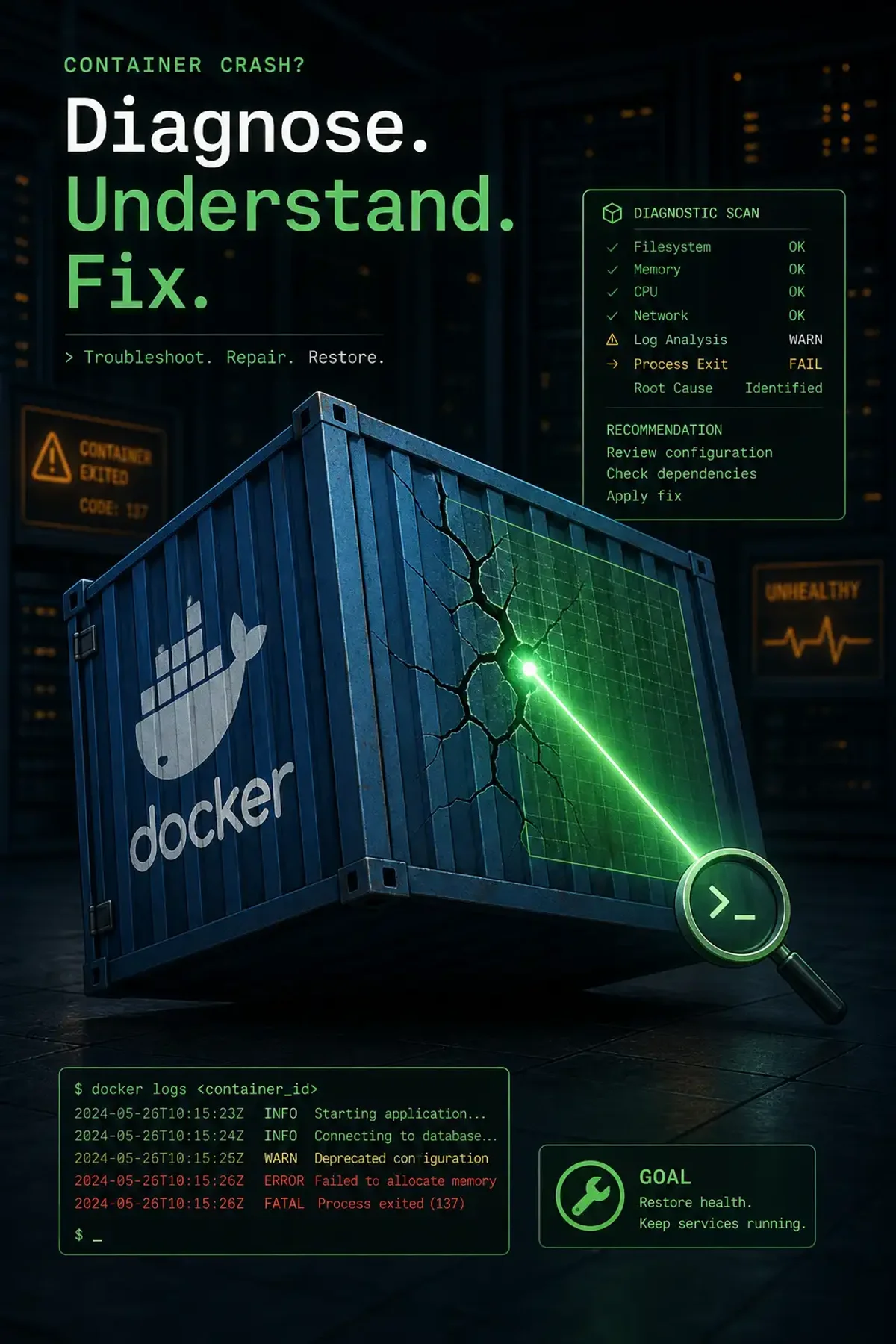
When a Docker container exits immediately after starting, Docker logs an exit code. These codes are your first diagnostic clue:
| Exit Code | Meaning |
|---|---|
| 0 | Normal exit, process finished successfully |
| 1 | Application error (check app logs) |
| 125 | Docker daemon error (rare) |
| 126 | Command not executable (permissions) |
| 127 | Command not found (missing binary) |
| 137 | SIGKILL — usually OOM (out of memory) |
| 139 | SIGSEGV — segmentation fault |
| 143 | SIGTERM — graceful shutdown request |
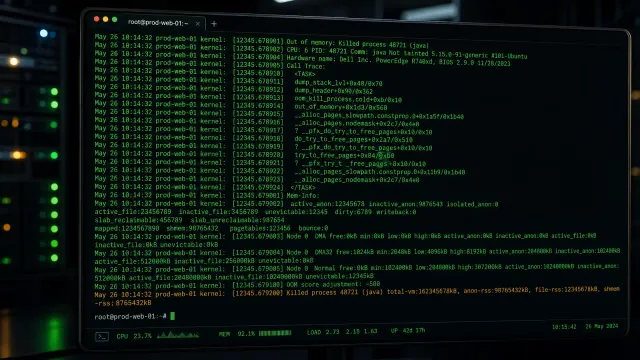
Exit code 137 is the most common crash-loop cause. Docker or the OOM killer terminated the container because it exceeded its memory limit.
Diagnosing Crash Loops
Start with the basics:
# See exit codes and restart count
docker ps -a --format "table {{.Names}}\t{{.Status}}\t{{.Image}}"

# Full logs, including from previous runs
docker logs --tail 100 crashing-container

# Inspect the container metadata
docker inspect crashing-container | jq '.[0].State'
Key fields in docker inspect output:
State.ExitCode: Last exit codeState.OOMKilled: Was it killed by OOM?State.Error: Docker-level error message
Exit Code 137 (OOM Kill)
Check if the container hit its memory limit:
docker inspect crashing-container | jq '.[0].State.OOMKilled'If true, check memory limits:
docker inspect crashing-container | jq '.[0].HostConfig.Memory'
# 0 means no limit, so the host OOM killer decided

# Check system OOM events
dmesg | grep -i "out of memory"
journalctl -k | grep -i oom
Fix by increasing the memory limit:
docker update --memory 1g --memory-swap 2g crashing-containerOr find the memory leak:
# Profile the container before it crashes
docker stats crashing-container --no-stream
docker exec crashing-container cat /proc/1/status | grep VmRSS
Exit Code 1 (Application Error)
When the app exits with code 1, it’s usually a configuration or runtime error:
# Check logs (including from crashed instances)
docker logs crashing-container 2>&1 | tail -50

# Start the container with a shell to debug
docker run -it --entrypoint /bin/sh my-image

# Check if the entrypoint exists and is executable
docker run --rm --entrypoint ls my-image /usr/local/bin/my-app
Entrypoint and CMD Issues
A common crash loop cause: the entrypoint or CMD references a binary that doesn’t exist:
# Check what the container tries to run
docker inspect my-image | jq '.[0].Config.Entrypoint'
docker inspect my-image | jq '.[0].Config.Cmd'

# Override and debug interactively
docker run -it --entrypoint /bin/sh my-image
# Inside: check if the expected binary exists
which my-binary
ls -la /usr/local/bin/
Health Check Crashes
A failing health check can cause orchestration systems (Swarm, Kubernetes, ECS) to kill and restart the container:
# Docker Compose
healthcheck:
  test: ["CMD", "curl", "-f", "http://localhost:8080/health"]
  interval: 30s
  timeout: 10s
  retries: 3
If the health endpoint returns non-200, the container is marked unhealthy and may be restarted. Test the health check manually:
docker exec crashing-container curl -v http://localhost:8080/healthPID 1 and Signal Handling
The process with PID 1 inside a container handles signals differently. A process that doesn’t handle SIGTERM will be SIGKILLed after a grace period (default 10s in Docker).
Use docker stop -t 30 to increase the grace period:
docker stop -t 30 my-containerFor apps that don’t handle signals well, use an init process like tini:
FROM ubuntu:22.04
RUN apt-get update && apt-get install -y tini
ENTRYPOINT ["/usr/bin/tini", "--"]
CMD ["/usr/local/bin/my-app"]
Or use Docker’s built-in init:
docker run --init my-imageSystematic Debugging Workflow
docker ps -a— check exit code and restart countdocker logs— read application outputdocker inspect | jq '.[0].State'— check OOMKilled, ExitCode, Error- If OOM: increase memory or fix leak
- If exit code 1: override entrypoint, debug interactively
- If exit code 127: check command exists and is executable
- If intermittent: check health check configuration
- For production: always use
--restart=on-failure:5with a restart limit to avoid infinite crash loops consuming resources
docker run -d --restart=on-failure:5 --name my-app my-imageA restart limit of 5 prevents a broken container from consuming CPU in an infinite restart loop.