You know the routine. You run docker compose up to start your app, and suddenly you’ve got MailHog, Adminer, a debug container, a test runner, and that one service your coworker added six months ago that nobody uses — all spinning up at once, eating RAM.
Docker Compose profiles fix this. They let you group services and start only what you need, when you need them. One compose file. Multiple configurations. No more editing YAML every time you switch contexts.
How Profiles Work
The idea is simple. Every service in your compose file either has a profile or it doesn’t. Services without a profile always start. Services with a profile only start when you explicitly activate that profile.
Here’s the minimal example:
services:
  app:
    image: nginx:alpine
    ports:
      - "8080:80"
    # No profiles defined — always starts

  debug-tool:
    image: nicolaka/netshoot
    command: ["sleep", "infinity"]
    profiles:
      - debug
    # Only starts when --profile debug is used
Running docker compose up starts only app. Running docker compose --profile debug up starts both app and debug-tool.
A Real-World Example: Dev, Debug, and Monitor
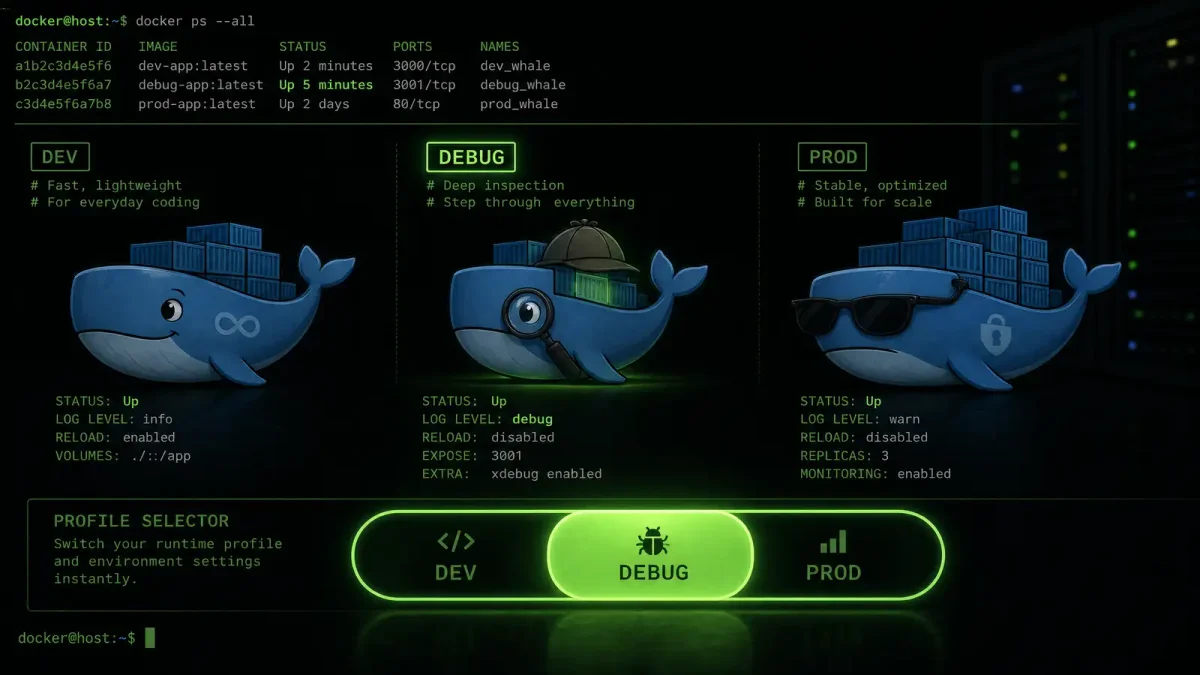
Let’s say you’re running a web application with a PostgreSQL database. In development, you want a few extras — an SMTP catcher for testing emails, a database admin panel. For debugging, you want a network toolkit container. For production monitoring, you want Prometheus and Grafana. Here’s how that looks with profiles:
services:
  web:
    build: .
    ports:
      - "3000:3000"
    depends_on:
      - db
    environment:
      DATABASE_URL: postgresql://user:pass@db:5432/app

  db:
    image: postgres:16-alpine
    volumes:
      - pgdata:/var/lib/postgresql/data
    environment:
      POSTGRES_USER: user
      POSTGRES_PASSWORD: pass
      POSTGRES_DB: app

  # Dev profile — optional development tools
  mailpit:
    image: axllent/mailpit
    ports:
      - "8025:8025"
    profiles:
      - dev

  adminer:
    image: adminer
    ports:
      - "8080:8080"
    profiles:
      - dev

  # Debug profile — network diagnostic tools
  netshoot:
    image: nicolaka/netshoot
    command: ["sleep", "infinity"]
    profiles:
      - debug
    network_mode: service:web

  # Monitor profile — observability stack
  prometheus:
    image: prom/prometheus
    volumes:
      - ./prometheus.yml:/etc/prometheus/prometheus.yml
    ports:
      - "9090:9090"
    profiles:
      - monitor

  grafana:
    image: grafana/grafana
    ports:
      - "3001:3000"
    profiles:
      - monitor
    depends_on:
      - prometheus

volumes:
  pgdata:
Now your workflow is clean:
# Just the essentials
docker compose up -d

# Development with all the tools
docker compose --profile dev up -d

# Need to debug a network issue?
docker compose --profile debug up netshoot

# Full production monitoring
docker compose --profile monitor up -d

# Multiple profiles at once
docker compose --profile dev --profile debug up -d
Services web and db always start. Everything else is opt-in.
A Service Can Belong to Multiple Profiles
Sometimes a service makes sense in more than one context. The profiles field accepts a list:
services:
  jaeger:
    image: jaegertracing/all-in-one:latest
    ports:
      - "16686:16686"
    profiles:
      - debug
      - monitor
Jaeger will start when you activate either debug or monitor.
Using the COMPOSE_PROFILES Environment Variable
Hardcoding --profile flags gets annoying. You can set an environment variable instead:
export COMPOSE_PROFILES=dev
docker compose up -d     # profile "dev" is active
This is especially useful for team workflows. Add it to your .env file:
COMPOSE_PROFILES=devNow docker compose up automatically includes the dev profile services. Override it on the command line when needed:
COMPOSE_PROFILES=monitor docker compose up -dProfiles and depends_on
Profiles interact with depends_on in one important way. If service A depends on service B, and B has a profile that isn’t activated, Compose will error out — it can’t satisfy the dependency. The solution is to also profile the dependent service:
services:
  app:
    build: .
    depends_on:
      - redis-cache

  redis-cache:
    image: redis:alpine
    profiles:
      - with-cache
If you run docker compose up without --profile with-cache, Compose throws an error because app depends on redis-cache which isn’t started. Fix it by profiling both:
services:
  app:
    build: .
    profiles:
      - default
      - with-cache
    depends_on:
      redis-cache:
        condition: service_healthy

  redis-cache:
    image: redis:alpine
    profiles:
      - with-cache
Now app starts with the default profile (without Redis) or with-cache profile (with Redis).
CI/CD Integration
Profiles shine in CI/CD pipelines. Instead of maintaining separate compose files for each pipeline stage, use profiles:
services:
  app:
    build: .
    profiles:
      - default
      - test
      - e2e

  unit-tests:
    build:
      context: .
      target: test-runner
    command: ["pytest", "tests/unit"]
    profiles:
      - test

  integration-tests:
    build:
      context: .
      target: test-runner
    command: ["pytest", "tests/integration"]
    depends_on:
      - db
    profiles:
      - test

  e2e-tests:
    image: cypress/included
    profiles:
      - e2e
Your CI config becomes a series of targeted commands:
# GitHub Actions example
jobs:
  test:
    steps:
      - run: docker compose --profile test up --abort-on-container-exit
  e2e:
    steps:
      - run: docker compose --profile e2e up --abort-on-container-exit
No separate compose files. No environment-specific duplication.
When Not to Use Profiles
Profiles aren’t a substitute for separate compose files in every situation. If your production configuration is radically different from development — different networks, different volume drivers, different deployment constraints — use docker-compose.prod.yml with the -f flag instead. Profiles are best for optional, additive services within the same logical application.
Also, profiles only control startup. A profiled service that’s already running because you activated its profile in a previous up command will keep running until you explicitly stop it. Use docker compose --profile debug down to clean up.
Quick Reference
# Activate a profile
docker compose --profile dev up -d

# Multiple profiles
docker compose --profile dev --profile debug up -d

# Via environment variable
COMPOSE_PROFILES=dev docker compose up -d

# Check which services would start
docker compose --profile dev config --services

# Stop everything including profiled services
docker compose --profile dev down
The next time you find yourself commenting out services in your compose file because you don’t need them right now, reach for profiles instead. Your RAM will thank you.